Lab Notebook
In the most common use-cases, the Lab Notebook part of the openBIS ELN-LIMS contains a personal Home Space (i.e. folder) for each user.
In the navigation menu, we see the Home Space on top and Active Spaces and Inactive Spaces below. Active Spaces are all Spaces of exisiting lab members a user has access to. Inactive Spaces are the Spaces of deactivated lab members a user has access to.
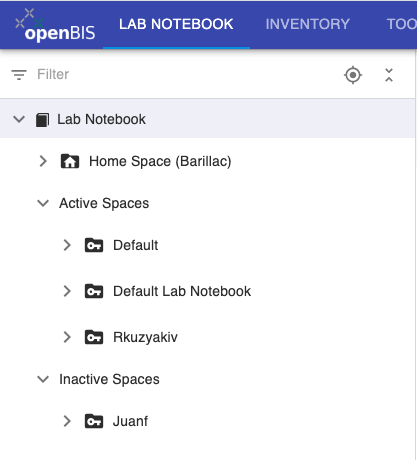
Home Space
In the default settings, every user has a Home Space, which is their personal lab notebook folder.
It is also possible to organise the Lab Notebook on Projects, rather than on personal Spaces. This should be configured by an Instance admin.
We will focus on the most common use case, with personal Spaces.

In your Home Space, you can create the following:
1. A Project. You can consider this a folder, that allows you to group together your experiments/measurements. At the Project level one can control access (see openBIS data model). Projects (and their content) can be shared with other group members and collaborators.
2. A Folder. In openBIS terms, this is an Object that allows you to group together other Objects, like a folder on the file system. It can contain Objects of any type. The Objects inside a Folder are children of the Folder Object.
3. An Entry. This is a notebook page.
4. Any Other Object. These are Objects of other types available in your openBIS, which can contain specific metadata for your measurements/experiments. These are created by an Instance admin.
Project
Inside a Project, you can create the following:
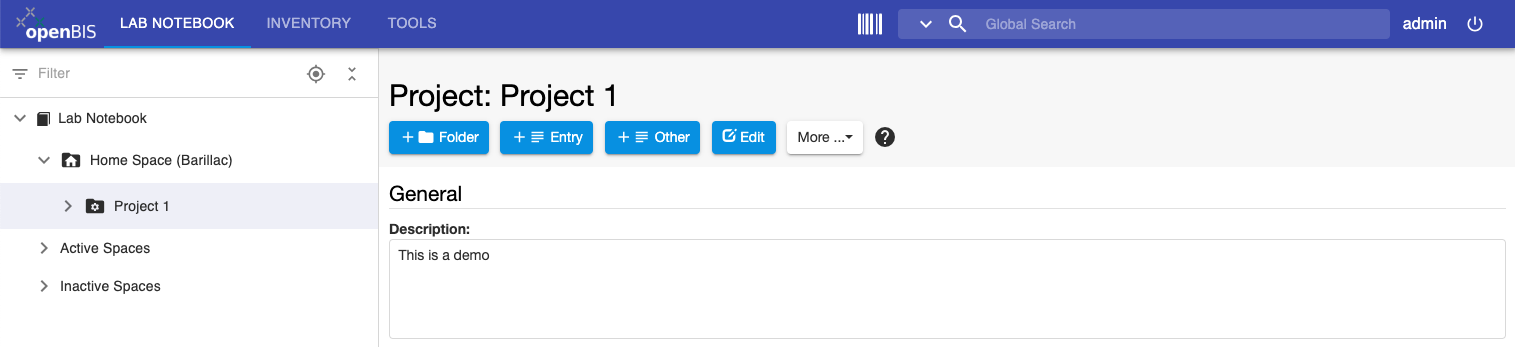
1. A Folder. This is an Object that allows you to group together other Objects, like a folder on the file system. It can contain Objects of any type.
2. An Entry. This is a notebook page.
3. Any Other Object. These are Objects of other types available in your openBIS, which can contain specific metadata for your measurements. These are created by an Instance admin.
4. An Experiment/Collection. See below for when to use them.
When to use Projects:
If you are working on multiple research projects, you can create an openBIS Project for each of them.
If you need to control access to some of information in your lab notebook. In openBIS access can be controlled at the level of Spaces and Projects (see openBIS data model).
Experiment/Collection
An openBIS Experiment/Collection is defined as a specific scientific question. The individual attempts to answer this question, are Objects of type Entry, Experimental Step or other custom Objects.
Inside an Experiement/Collection you can create:
1. A Folder. This is an Object that allows you to group together other Objects, like a folder on the file system. It can contain Objects of any type.
2. An Entry. This is a notebook page.
3. Any Other Object. These are Objects of other types available in your openBIS, which can contain specific metadata for your measurements. These are created by an Instance admin.
Difference between Default Experiment and Collection.
Default Experiment and Collection are two different types of Experiment/Collection (see openBIS data model ). Collection is a Standard Type provided with the openBIS installation; Default Experiment is a Default Type and is created if eln-lims-types-templates plugin is enabled (see ELN Types).
The difference between the two consists in the fact that a Collection can be considered similar to a folder, with no metadata and the content of a Collection is visible in a table in the Collection page and not in the ELN menu.
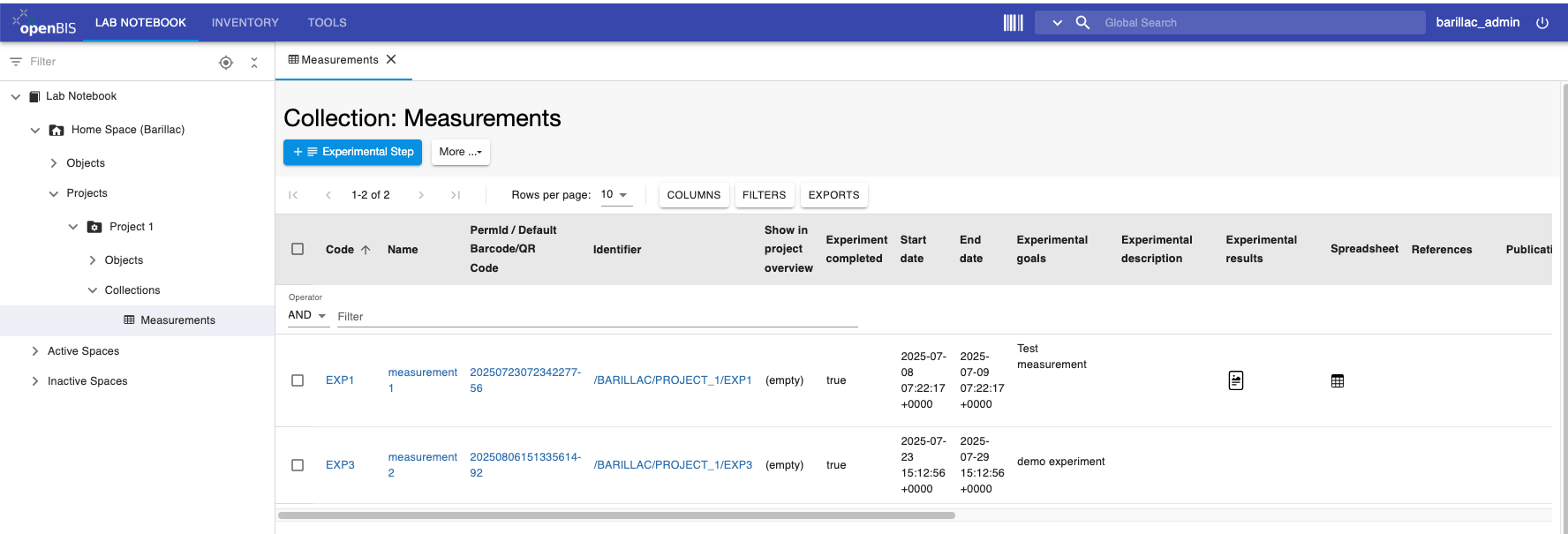
A Default Experiment has metadata fields that can be filled in. In addition, the content of the Default Experiment is shown in the ELN navigation menu.
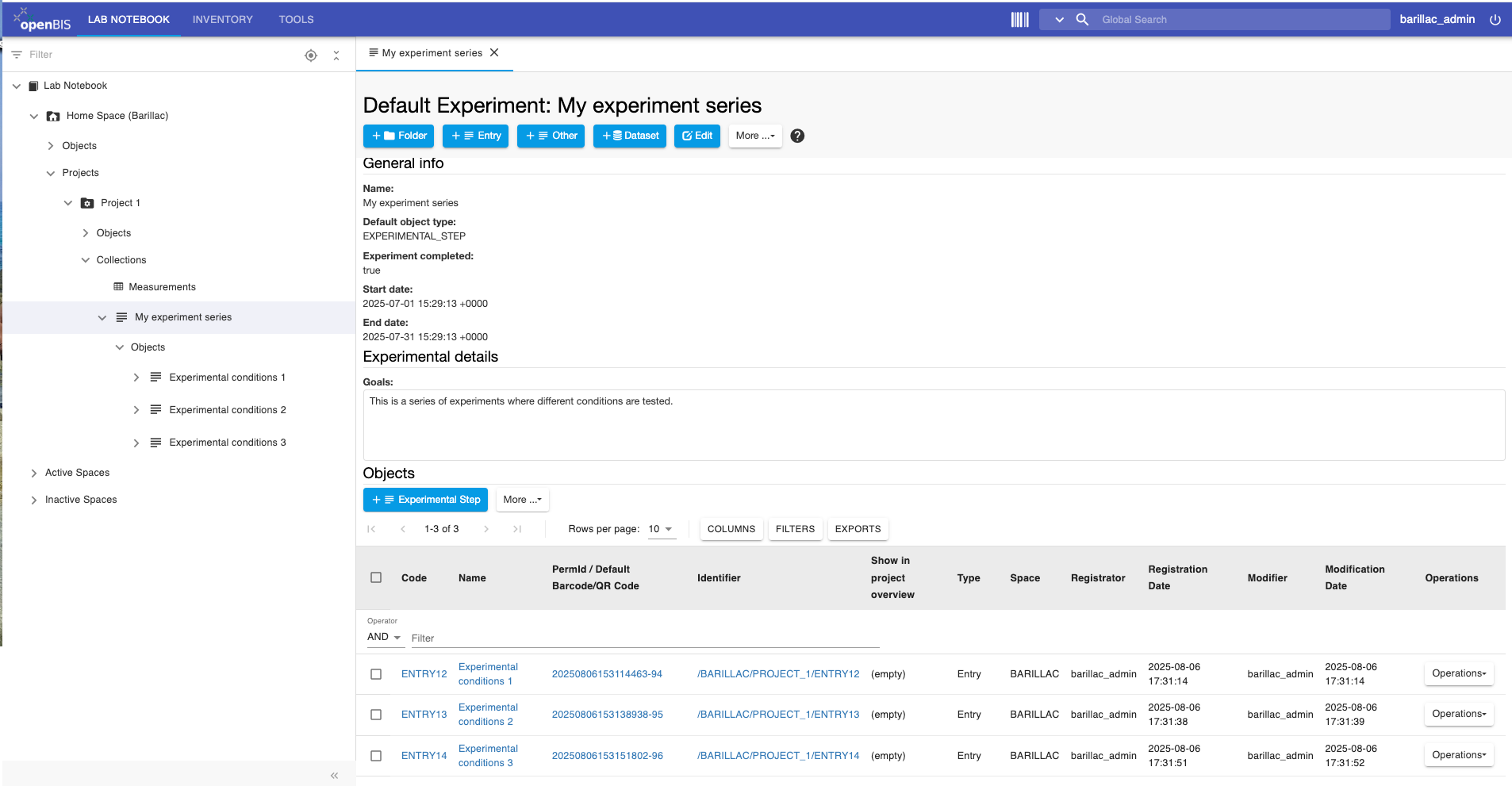
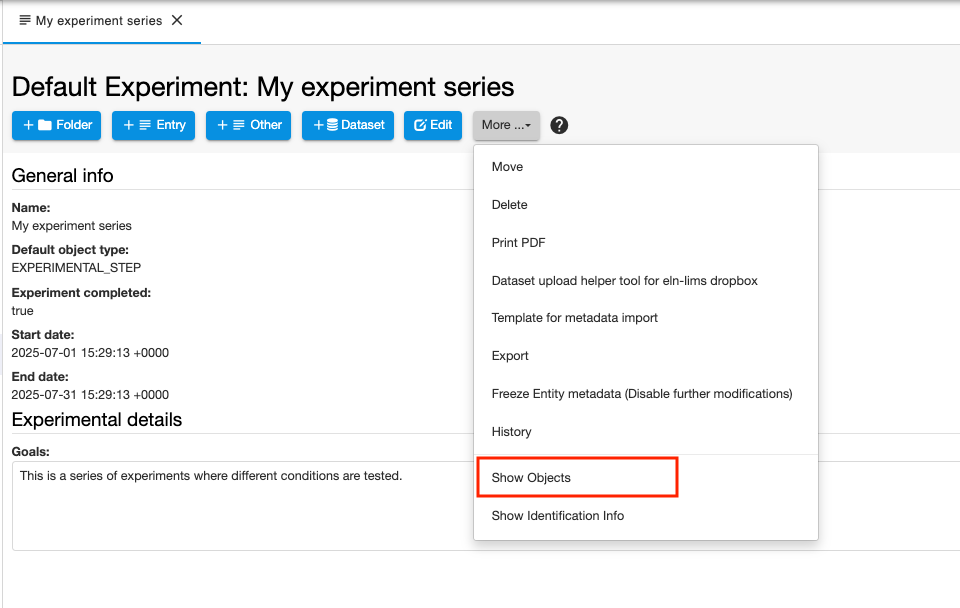
To see the Objects belonging to the Default Experiment also in a table in the main page, as shown above, you should select Show Objects from the More.. dropdown.
Entry
This is an empty page, which resembles a Word document.
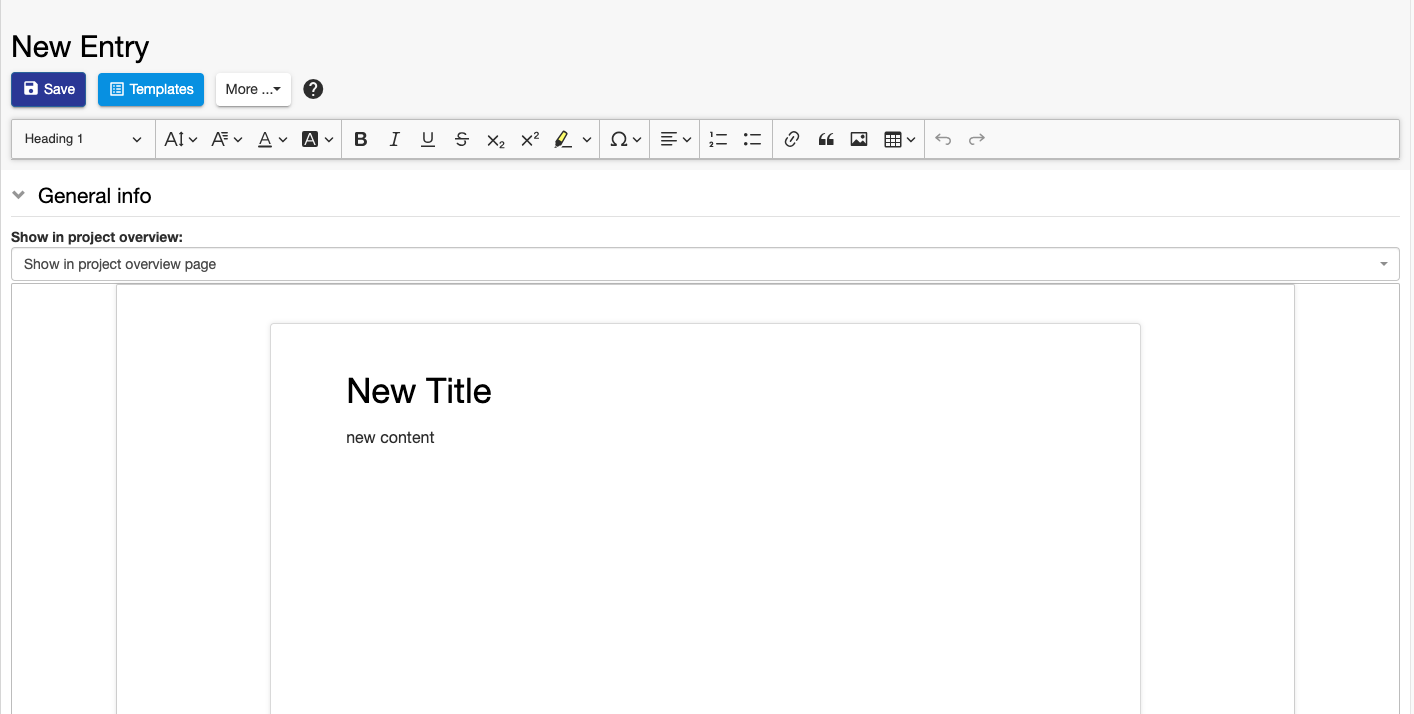
It can be used to describe measurements/experiments when no specific metadata needs to be recorded.
Experimental Step
This is a Default Type provided by openBIS (see ELN Types), with some generic metadata fields, such as start date, end date, goals, description, results, etc.
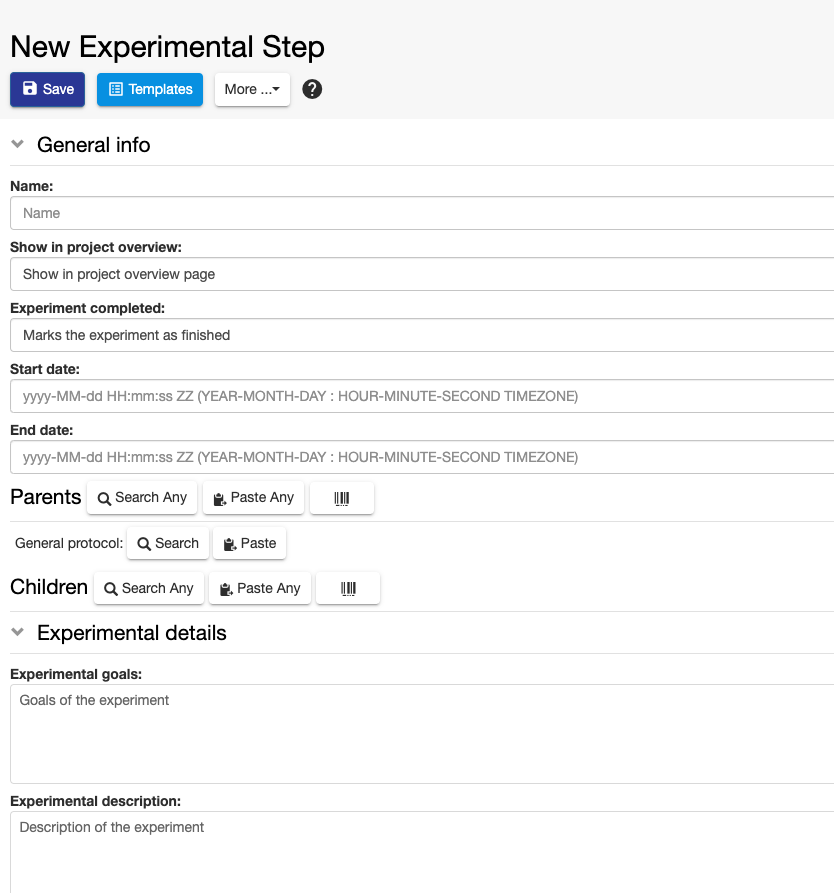
It can be used by users who prefer to use a more structured approach in taking their notes.
An Instance admin can create additional Object types with specific metadata required for given types of measurements/experiments.
Datasets
Datasets can be considered as folders where data files are stored (see openBIS data model).
Datasets tables
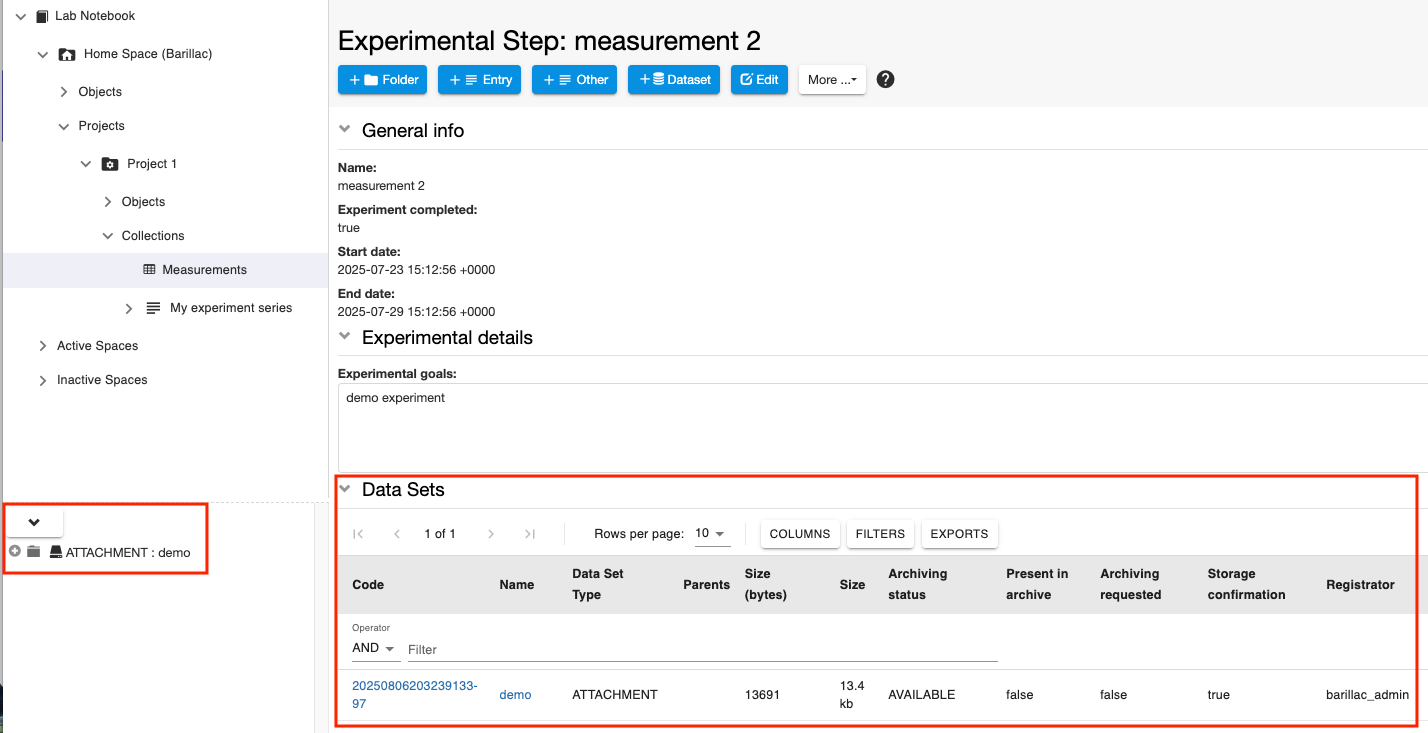
Since openBIS version 20.10.7, a dataset table has been added to the Experiment/Collection and Object pages.
This table shows the metadata of the datasets. The content of the datasets can be navigated through the main menu.
Move Datasets
It is possible to move a Dataset from one Experiment/Object to another Experiment/Object.
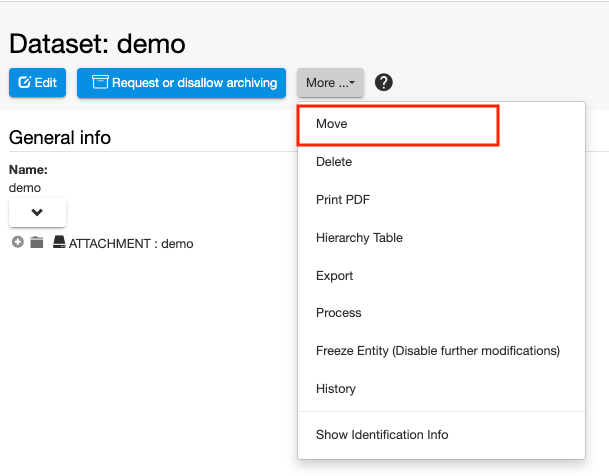
Click on the Dataset in the main menu
In the Dataset page select Move from the More.. dropdown
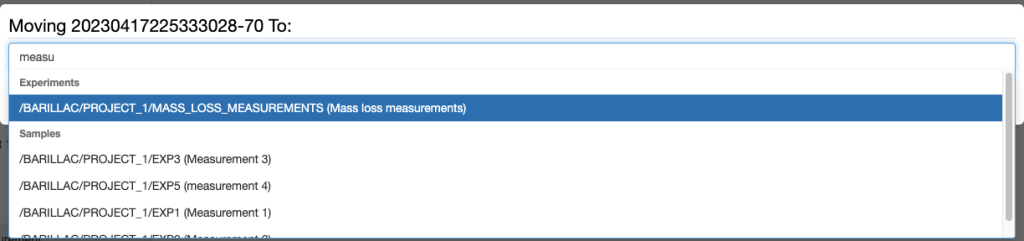
Enter the name or code of the Experiment or Object where you want to move the Dataset to. If you start typing, openBIS will show you a list of possible entries that match what you entered.
Press the Accept button.
Move one Experiment/Collection to a different Project
It is possible to move one Experiment/Collection and all contained Objects and Datasets from one Project to another.
If Objects contain parent/child relationships these are preserved.
To move one Experiment/Collection from one Project to another:
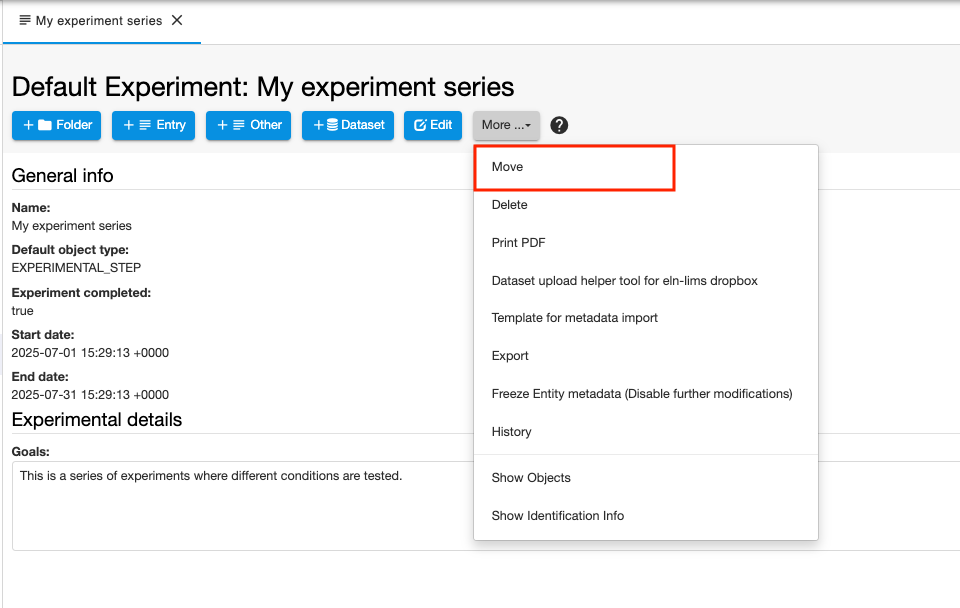
Select the Experiment/Collection you want to move from the navigation menu.
Select Move from the More… dropdown
3. Enter the code of the Project where you want to move your Experiment/Collection. If you start typing the code, openBIS will prompt you with a list of available options and you can select the appropriate one from there.

4. Click Accept

Project Overview
In the Project page you have the options to see:
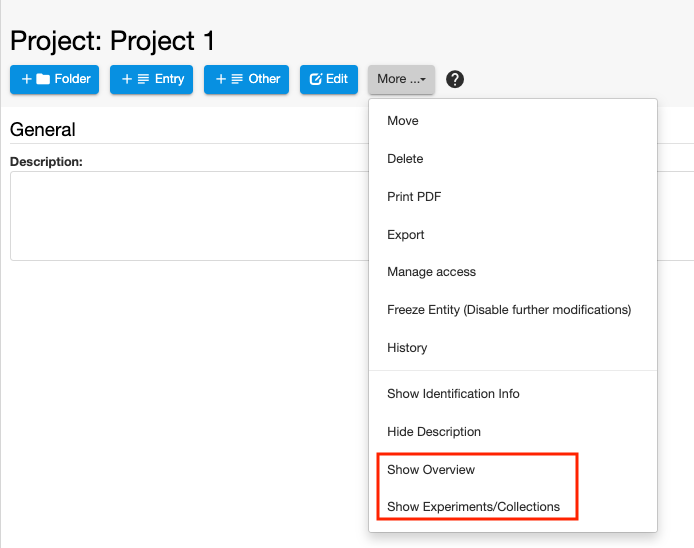
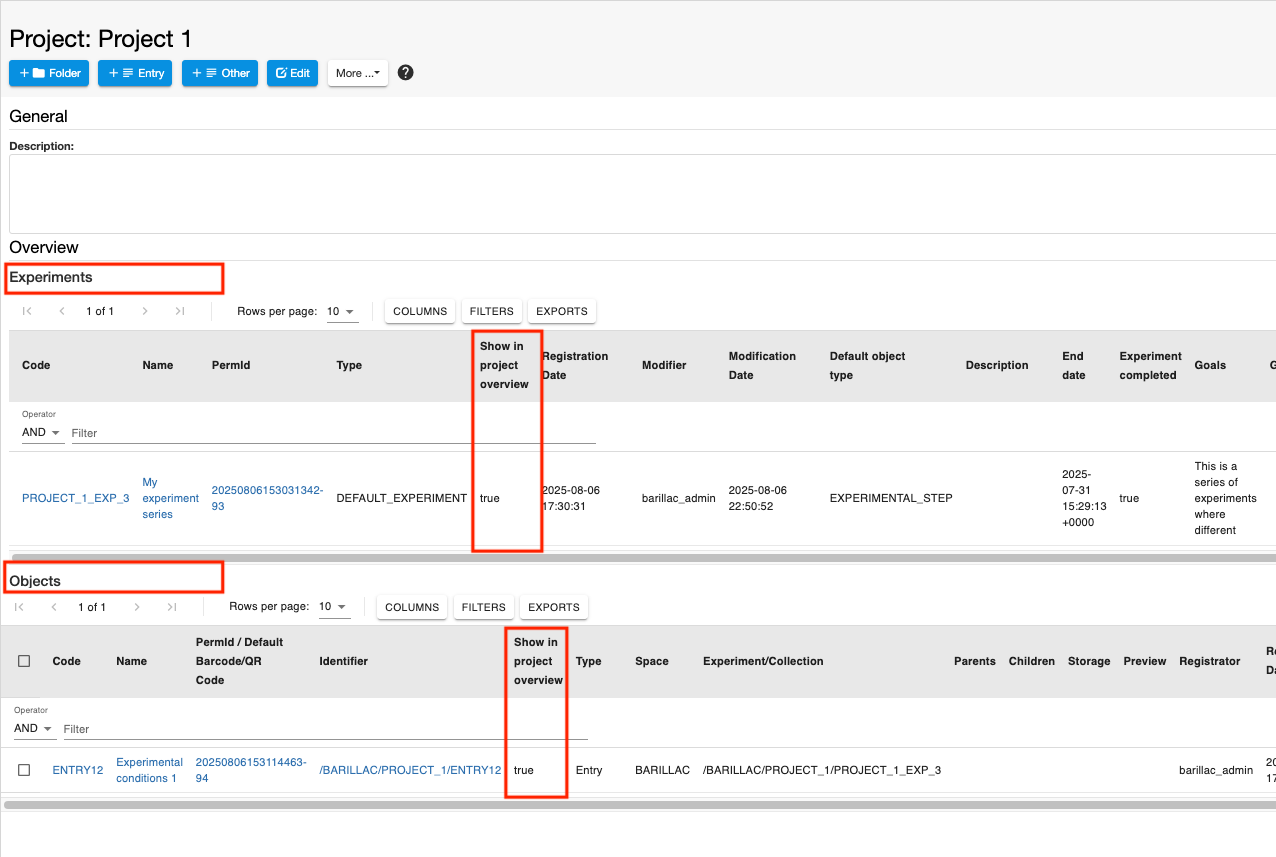
Default Experiments, Experimental Steps and Entries with the field Show in project overview = true. This is a way to mark the most relevant Experiments*, Experimental steps and Entries and see them at a glance on the Project page (Show Overview).
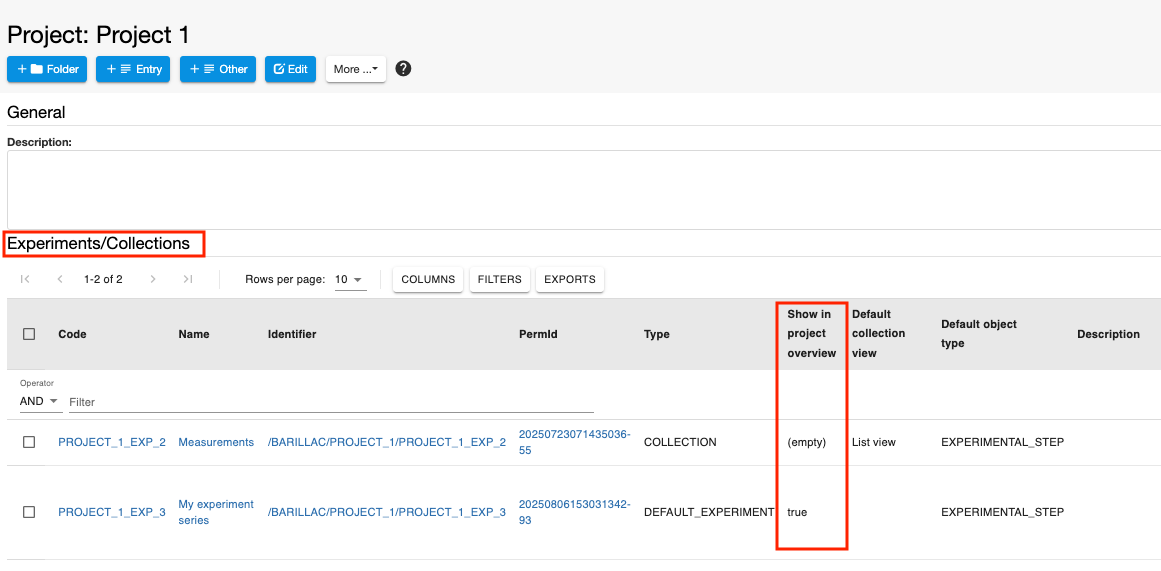
All Experiments/Collections belonging to the Project (Show Experiments/Collections).
The two options are available from the More.. dropdown on the Project page.
Below you see an example of an overview in a Project page.
Below you see an example of the visualisation of Experiments and Collections in a Project page.
Edit and Delete Projects, Experiments, Experimental Steps
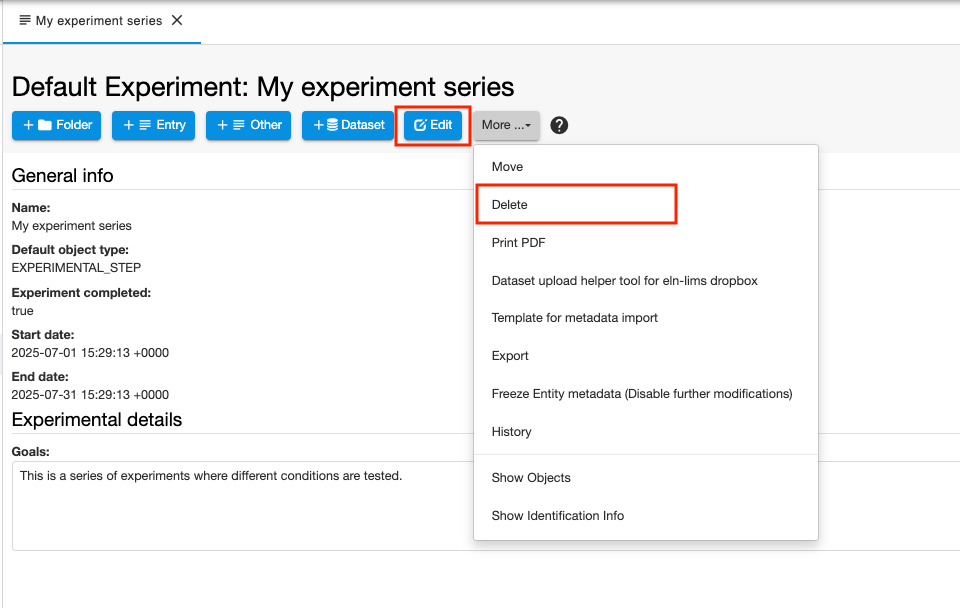
Projects, Experiments/Collections, Experimental Steps and Entries can be edited at any time, by selecting the Edit icon from the toolbar of the relevant page.
They can be deleted using the Delete option under More tab in the toolbar.
Experiments/Collections, Experimental Steps and Entries are moved to the trashcan, from where they need to be removed in order to be permanently deleted from the database. Projects are directly deleted, they are not moved to the trashcan first. Projects can be deleted only after deleting all the Experiments/Collections they contain.
Please be aware that, by default, only users with Space/Project Admin and Instance Admin role have permission to delete. Default permissions can be modified on system level (see Changing the openBIS capability role map).
Sharing Lab Notebooks and Projects
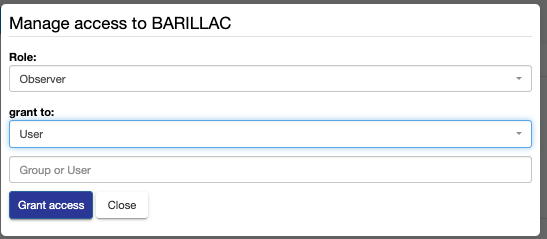
It is possible to share either a complete lab notebook or single Projects, using the Manage Access option in the More.. dropdown of a Space or Project page, as shown below.
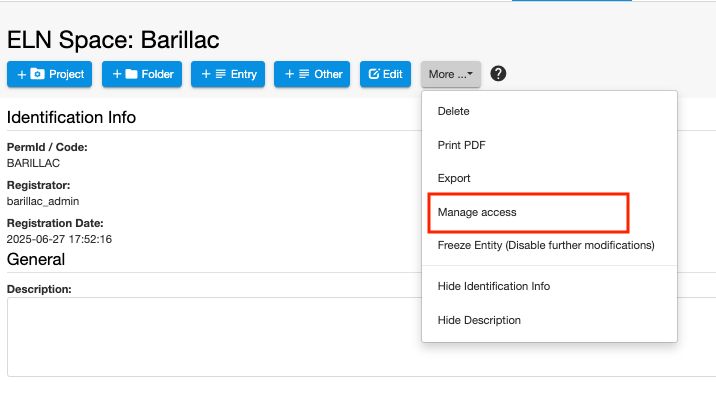
Available roles are:
Observer: read-only access to Space or Project.
User: can create and modify entities in Space or Project.
Admin: can create, modify and delete entities in Space or Project.
The roles can be granted to:
User: the user needs to be already registered in openBIS. The username of the user needs to be entered.
Group: the name of a user group existing in openBIS needs to be entered.