Data & Metadata Export to Data Repositories
openBIS currently supports direct export of data and metadata to Zenodo and to the ETH Research Collection
Export to Zenodo
This export enables direct data & metadata transfer from openBIS to Zenodo. First of all the connection to Zenodo needs to be configured on system level in the DSS service.properties (see How to configure the openBIS DSS) If this is configured, a lab manager, who has admin rights for the Settings, needs to enable it in the ELN, as explained in Enable Transfer to Data Repositories.
Create Zenodo Personal Access Token
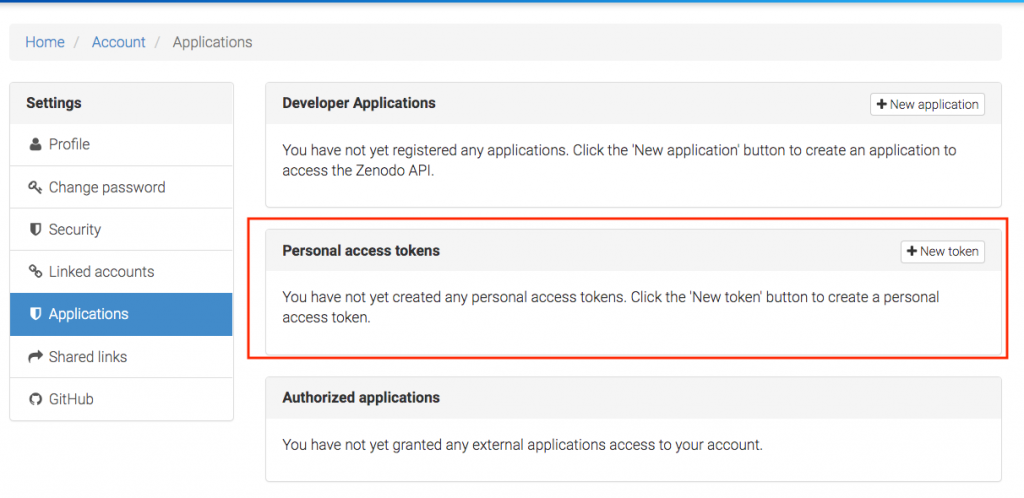
In order to be able to export data to Zenodo, you need a valid Zenodo account. You also need to create a personal access token. This can be done from the Applications under Settings in Zenodo, as shown below:
Save Zenodo Personal Access Token in openBIS
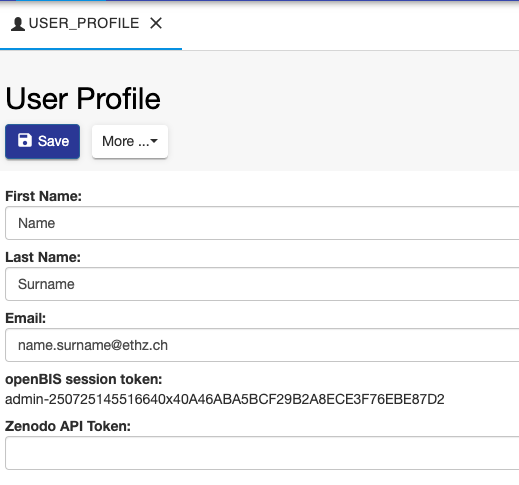
After creating the personal access token in Zenodo, this needs to be stored in openBIS, with the following procedure:
Go to User Profile under Utilities in the main menu, in the Tools tab.
Enable editing.
Add the Zenodo API Token.
Save.
Export data to Zenodo
To export data to Zenodo:
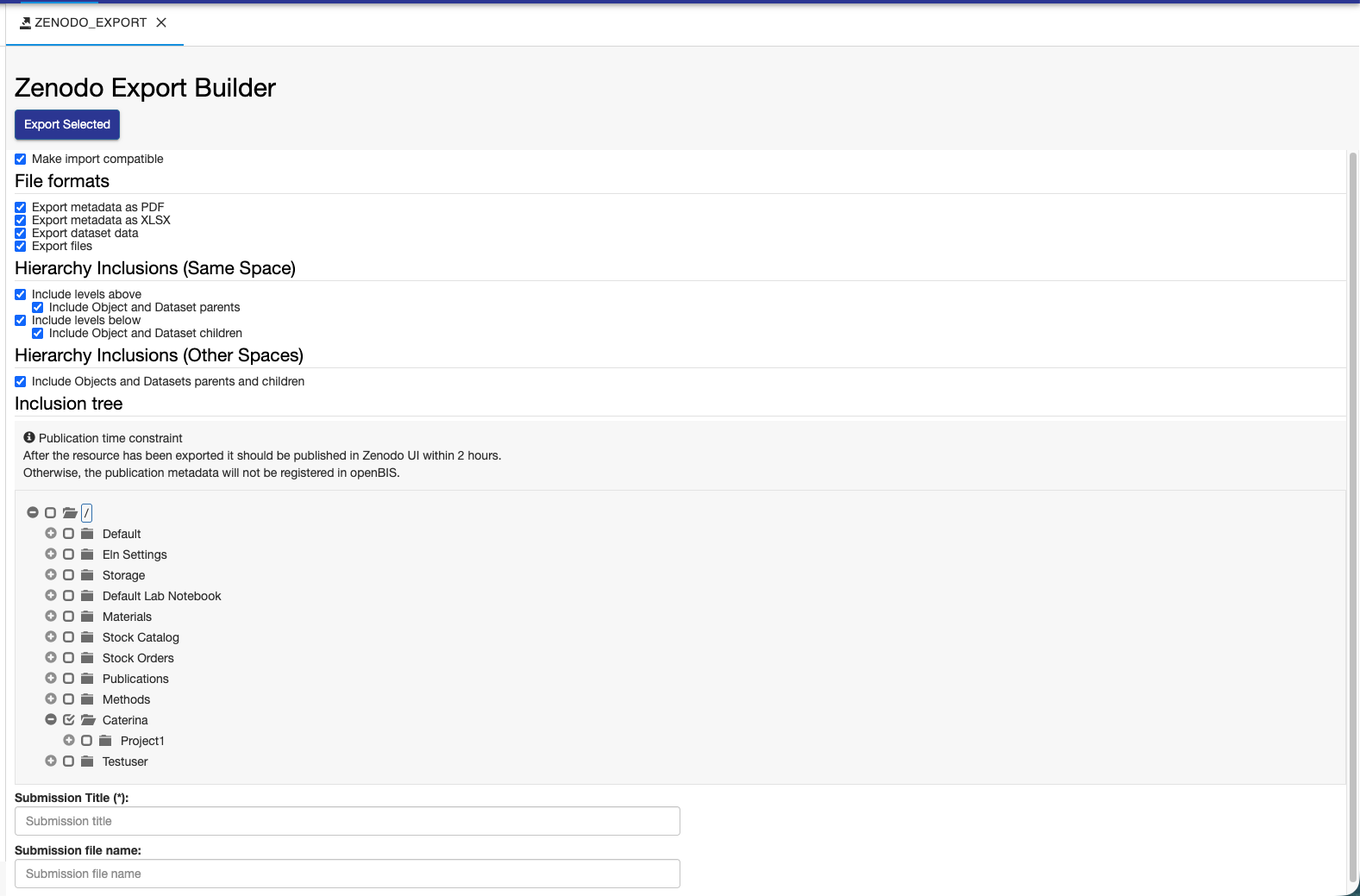
Go to Exports -> Export to Zenodo under Utilities in the main menu, in the Tools tab.
Select the Export options you want to use. The options are the same as explained above, in the Export of entities)
Select the entities you want to export from the menu.
Enter a Submission Title.
Click Export Selected on top of the export form.
The selected data are transferred as a .zip file to Zenodo. You are now redirected to Zenodo, where you should fill in additional metadata information.
Publish the entry in Zenodo.
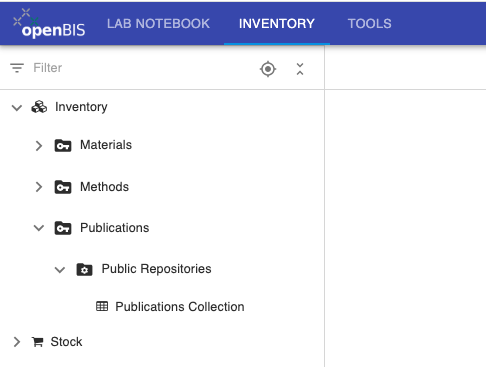
After you hit the Publish button in Zenodo, a new entry with the details of this submission will be created in the Publications folder in the Inventory. Please note that this may take a few minutes.
Export data to Zenodo in a multi-group instance
If you export data from a multi-group instance where you have access to more than one group, you need to select the group under which the new publication entry should be created.
In the example below we see 3 group names: GENERAL, ETHRDH, RDM.
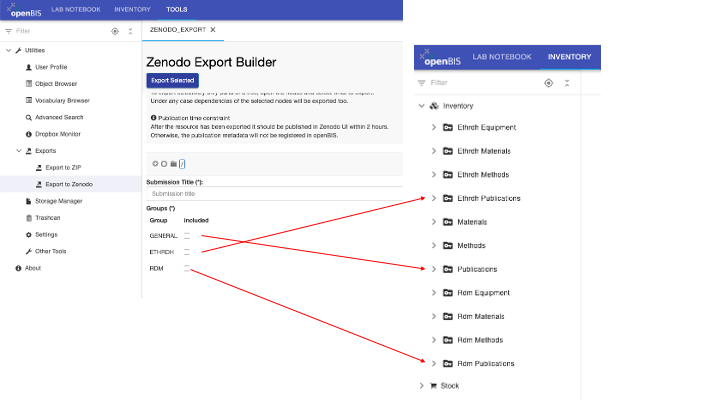
If you select GENERAL, the publication entry will be created under the PUBLICATION Space (if present).
If you select ETHRDH, the publication entry will be created under the ETHRDH_PUBLICATION Space.
If you select RDM, the publication entry will be created under the RDM_PUBLICATION Space.
Export to ETH Research Collection
The ETH Research Collection is a FAIR repository for publications and research data provided by ETH Zurich to its scientists.
Data can be uploaded to the ETH Research Collection only by members of ETH Zurich. This export feature is only available to ETHZ members.
To export data & metadata to the ETH Research Collection:
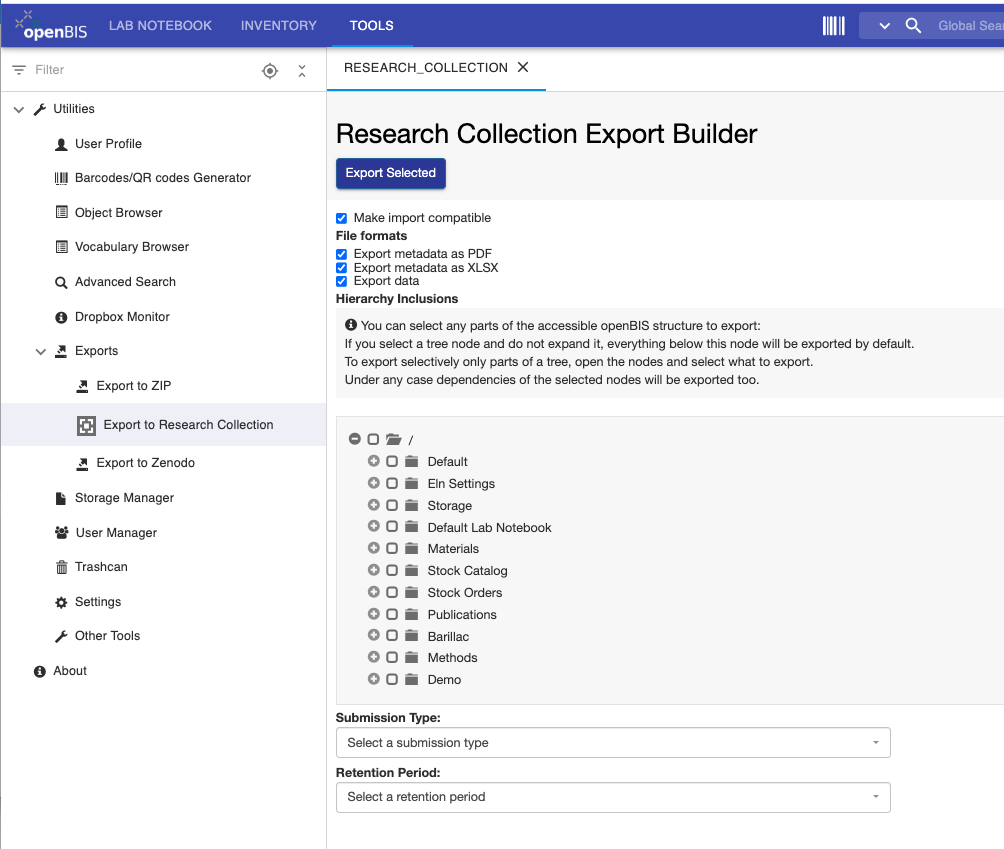
Go to Exports -> Export to Research Collection under Utilities in the main menu, in the Tools tab.
Select the Export options you want to use. The options are the same as explained above, in the Export of entities)
Select what to export from the tree.
Select the Submission Type from the available list: Data collection, Dataset, Image, Model, Sound, Video, Other Research Data.
Select the Retention Period that will be used in the ETH Research Collection: 10 years, 15 years, indefinite. This is time for which the data will be preserved in the Research Collection.
Click the Export Selected button on top of the page.
The selected data are transferred as .zip file to the ETH Research Collection. You will be redirected to the ETH Research Collection and will need to complete the submission process there.
A new entry with the details of this submission will be created in the Publications folder in the Inventory after the submission process in complete. This may take a few minutes.
The size limit for one single export to the ETH Research Collection is 10GB.
Export data to the ETH Research Collection in a multi-group instance
If you export data from a multi-group instance where you have access to more than one group, you need to select the group under which the new publication entry should be created. See explanation in section Export data to Zenodo in a multi-group instance).