openBIS Drive
openBIS Drive is an application that allows you to syncronize your files and folders from a local storage to the openBIS storage.
You can download openBIS Drive for Mac, Windows and Linux here:
For installation, you can follow instructions provided here: openBIS Drive installation
When you open openBIS Drive, you can create a new sync jon by clicking on the + Add button.
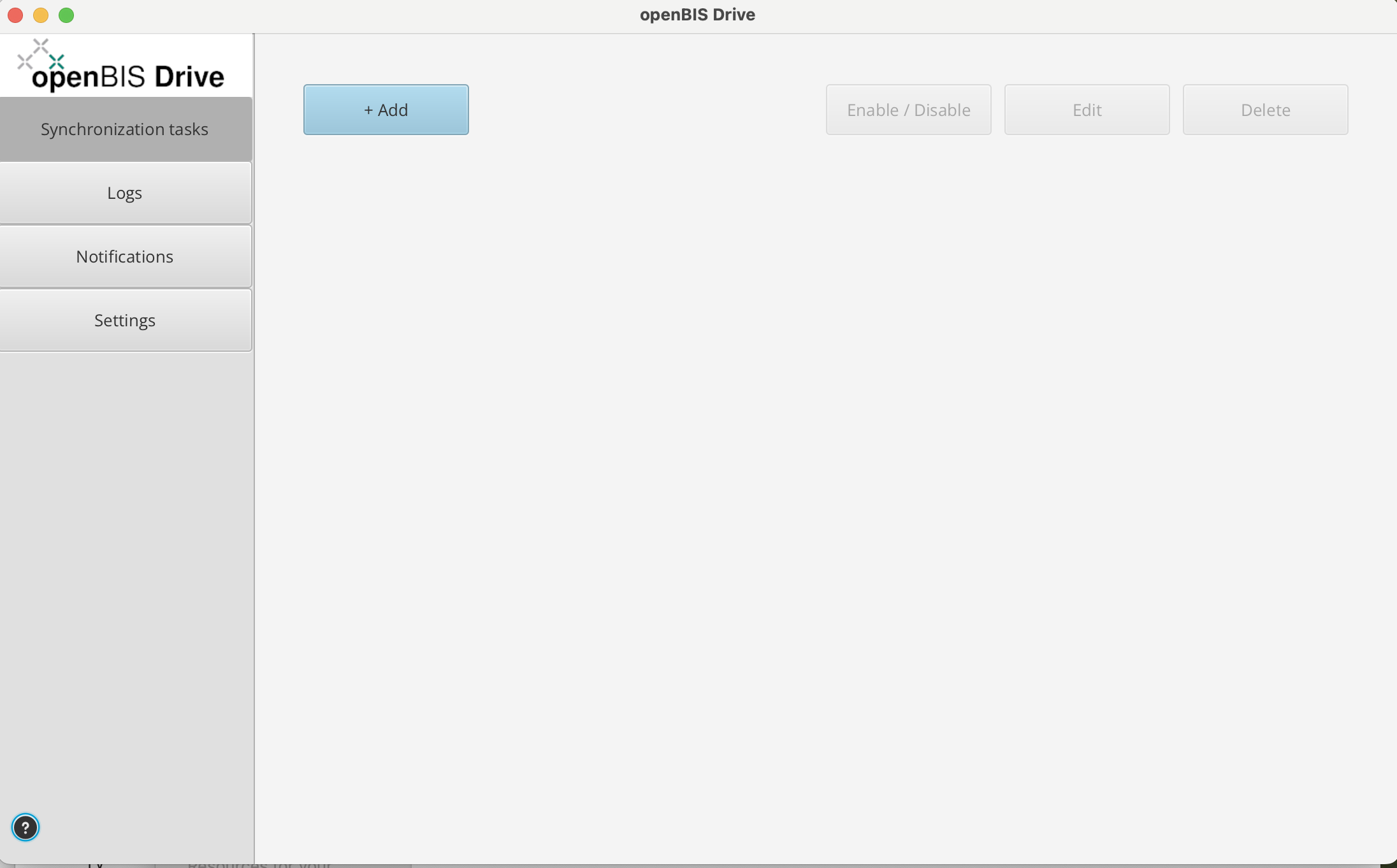
This opens a window where you need to enter the information explained below.
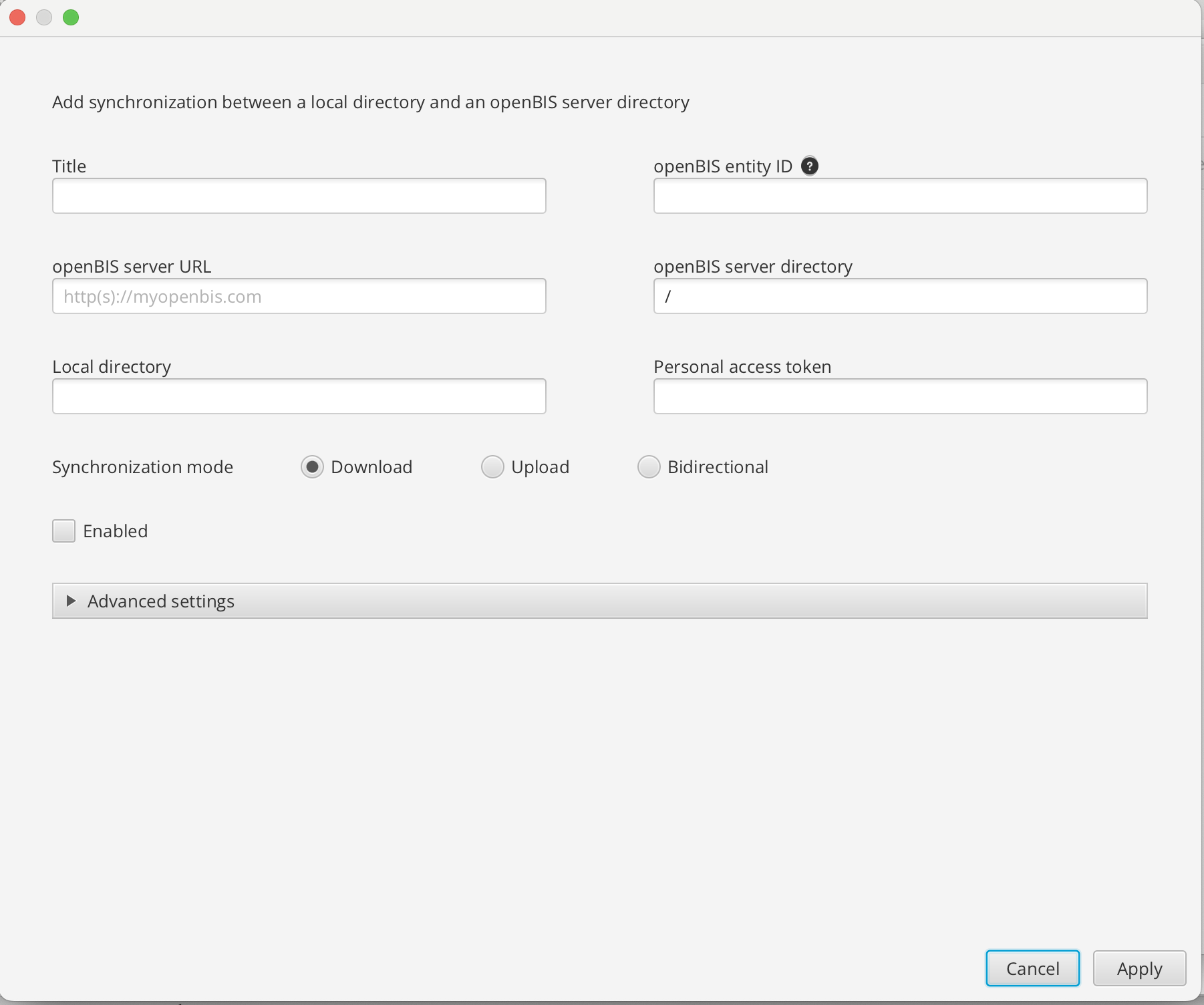
Title. you can enter a name for the syncronization job. If you do not enter anything, this field will be automatically filled in with the name of the openBIS entity selected for syncing.
openBIS entity ID. This is the openBIS entity (Collection or Object) to which you want to sync data. If you start typing the name or code of the desired entity a list of options from which you can choose will appear. It is possible to sync also to Datasets, but only in download mode.
openBIS server URL. This is the URL of the openBIS server you want to sync to.
openBIS server directory. By default this will be the home directory on the entity you want to sync to
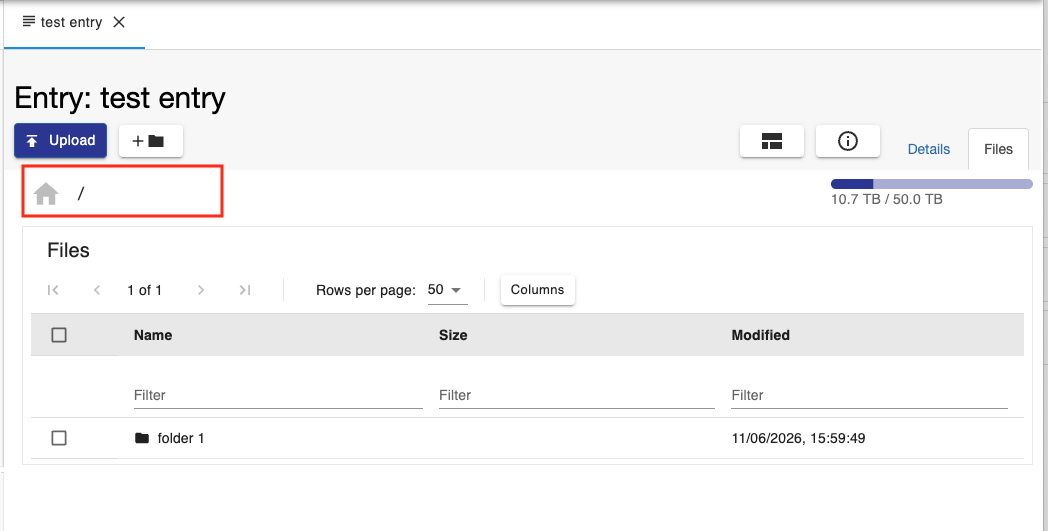
If you want to sync to a specific folder inside the home folder, you can provide the path here.
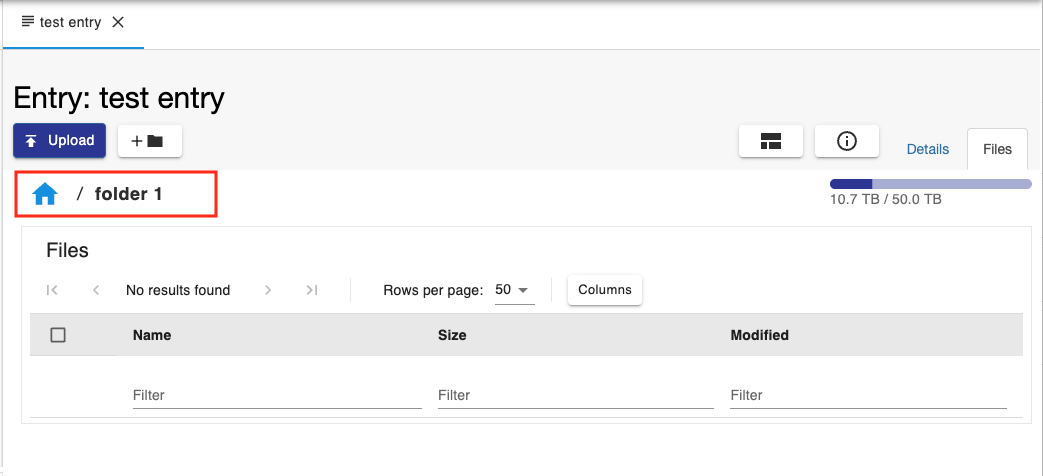
Local directory. This is the folder (directory) on you local storage you want to sync to an openBIS entity.
Personal accees token. PATs can now only be created via the admin UI or pyBIS. This is used to connect to openBIS.
Syncronization mode. You can choose between Download (from openBIS to local storage), Upload (from local storage to oepnBIS), Bidirectional.
Enabled. You need to select this to enable the synchronization task.
Advanced Settings. In this section you can customize the rules you want to use for files that should be ignored for upload to openBIS.
Global default. This is the default list of ignored file patterns used by the Drive.
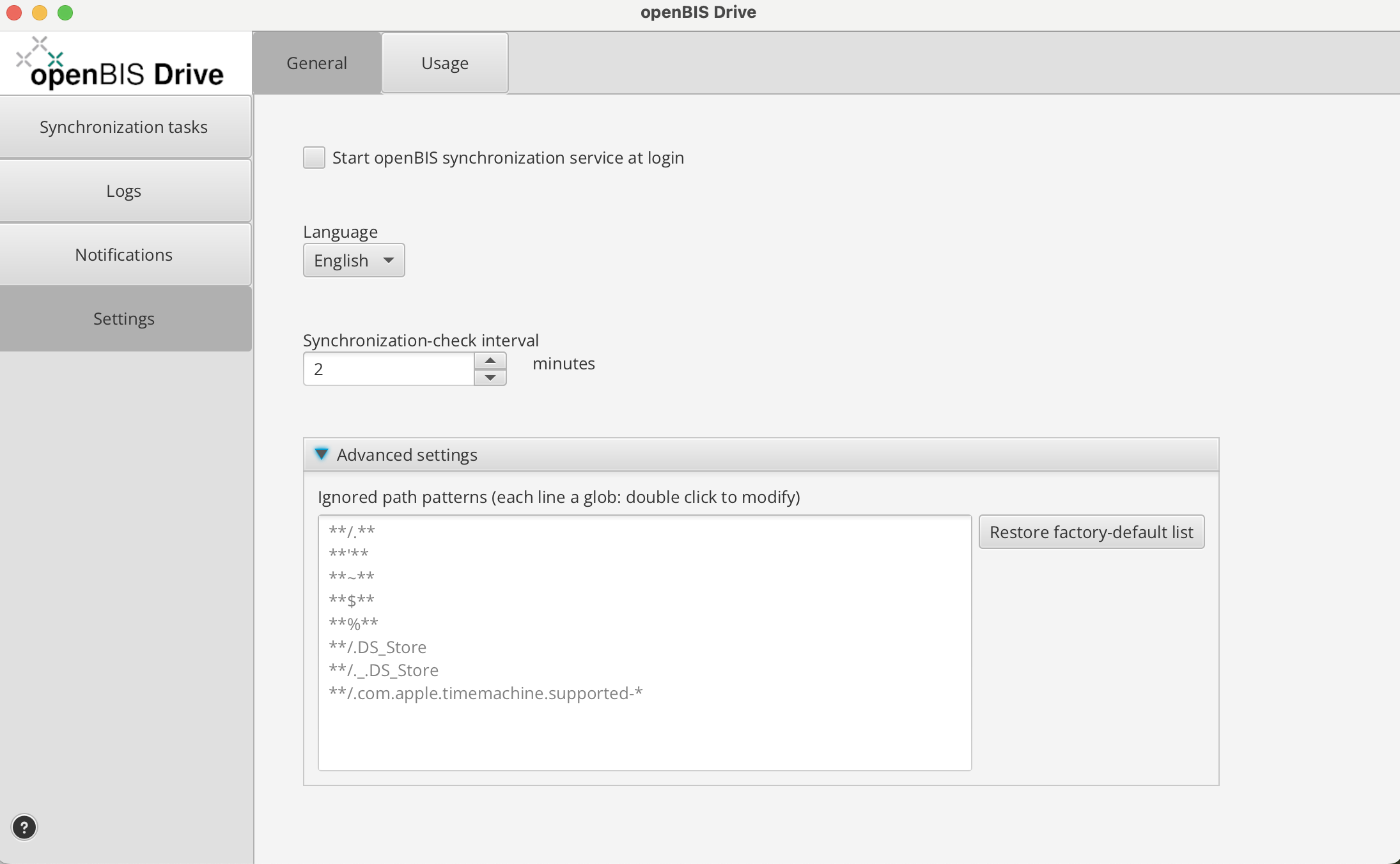
Specific list. Here you can specify your list of file patterns to ignore. You can also copy the defaults and modify them.
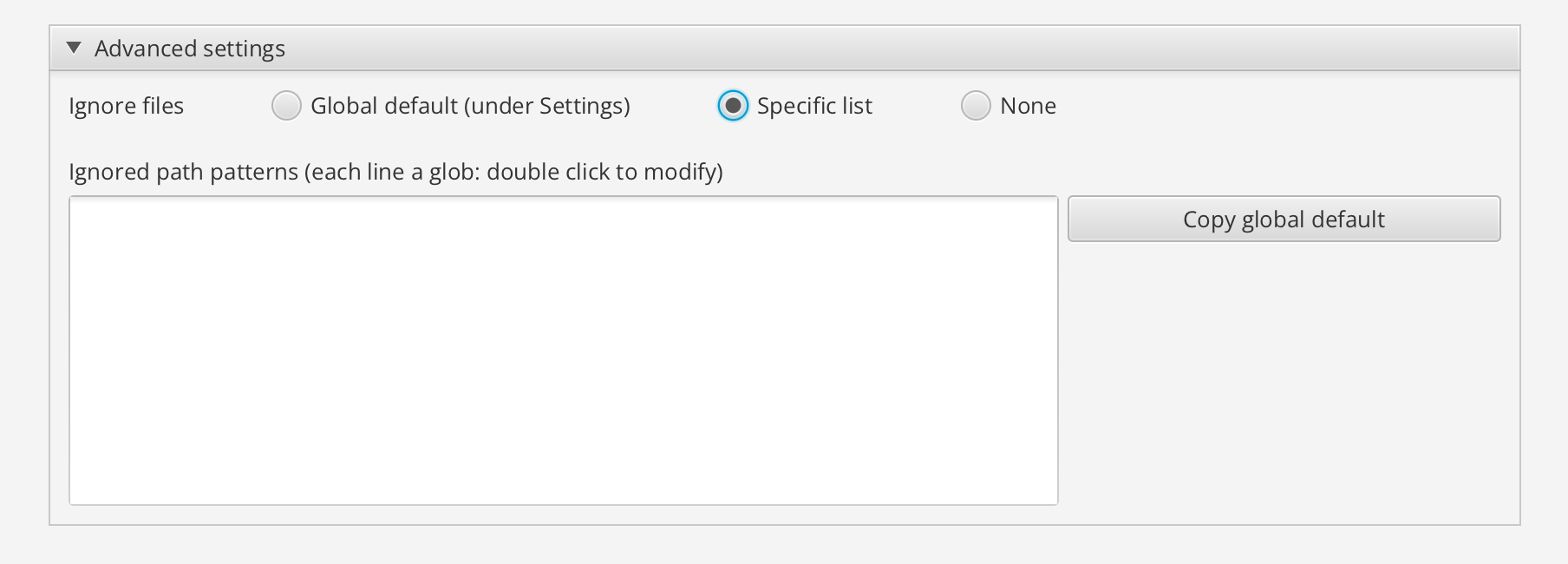
None. You can select thsi option if you do not want ignore any pattern, so all files will be uploaded/downloaded by the Drive.
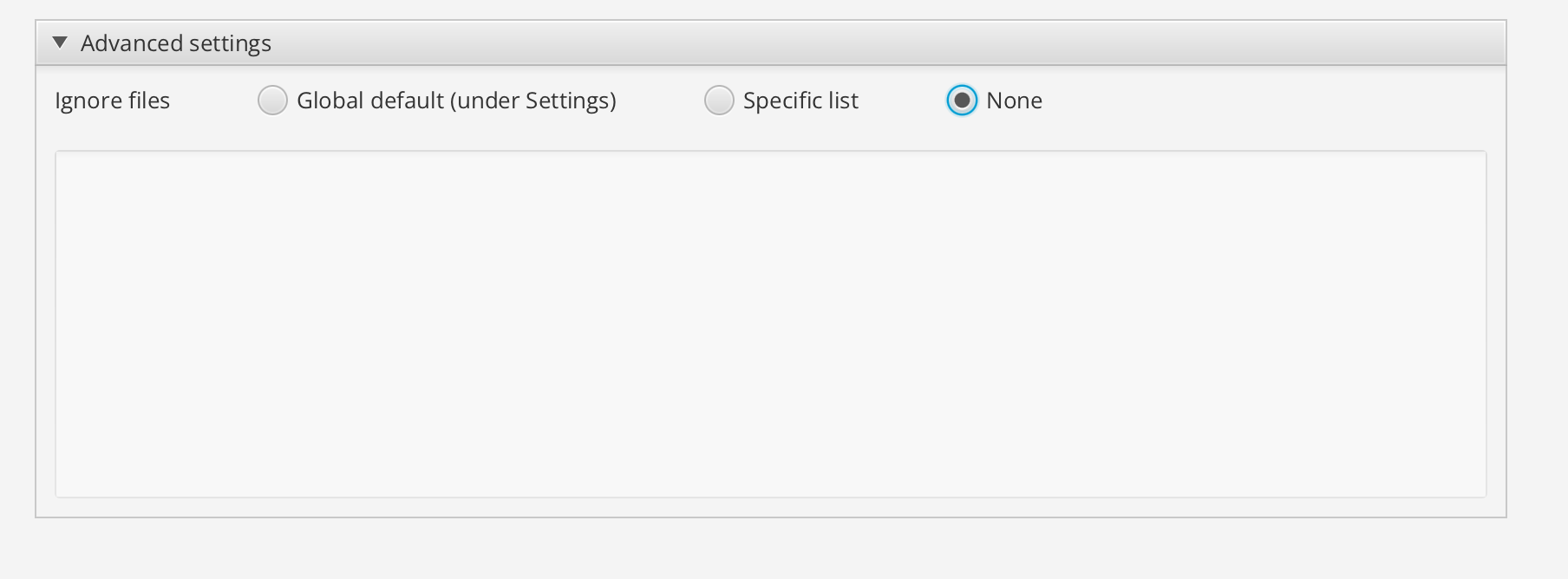
On the left hand-side menu of openBIS Drive you can select:
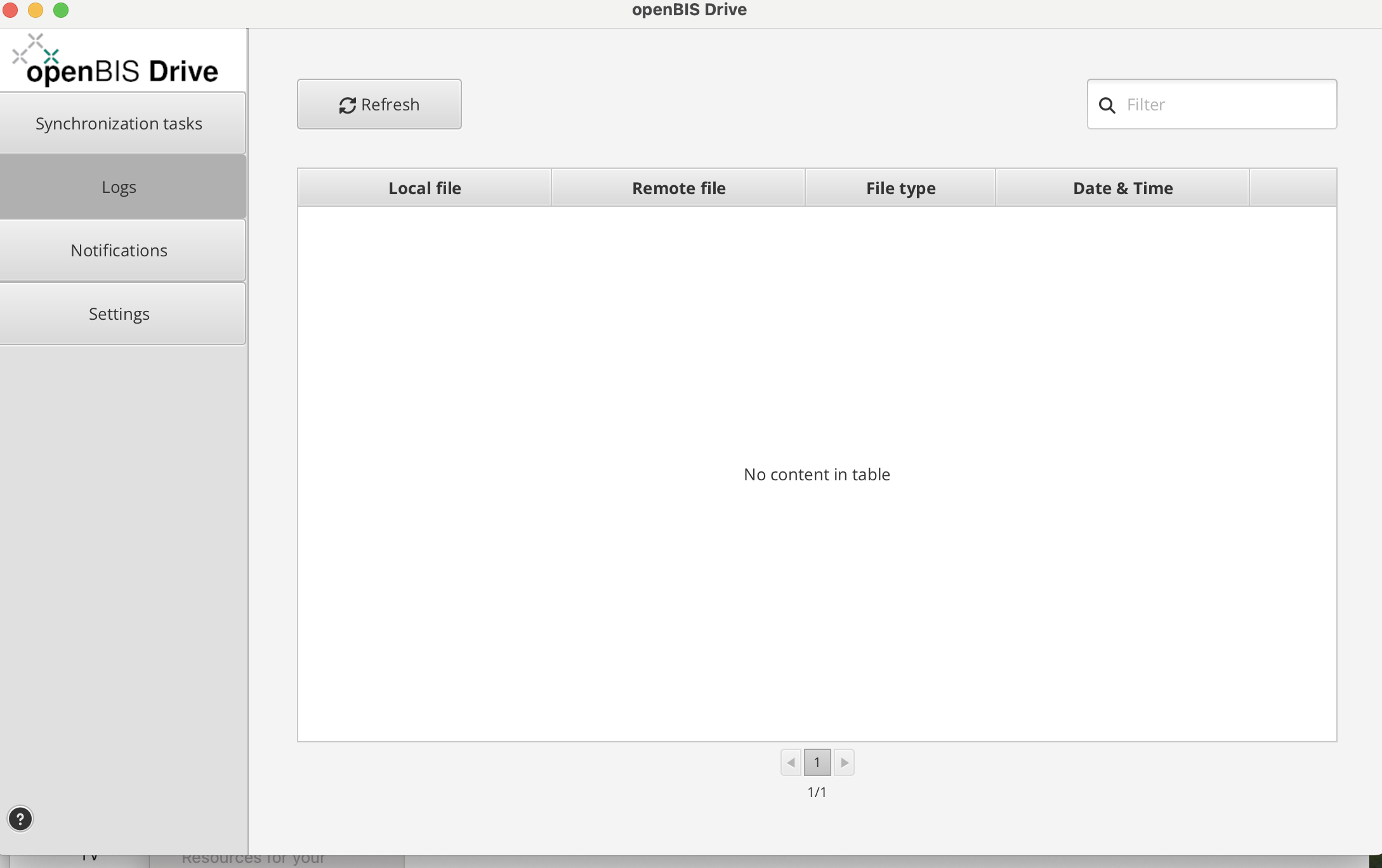
Logs. This shows the logs of the syncronization tasks.
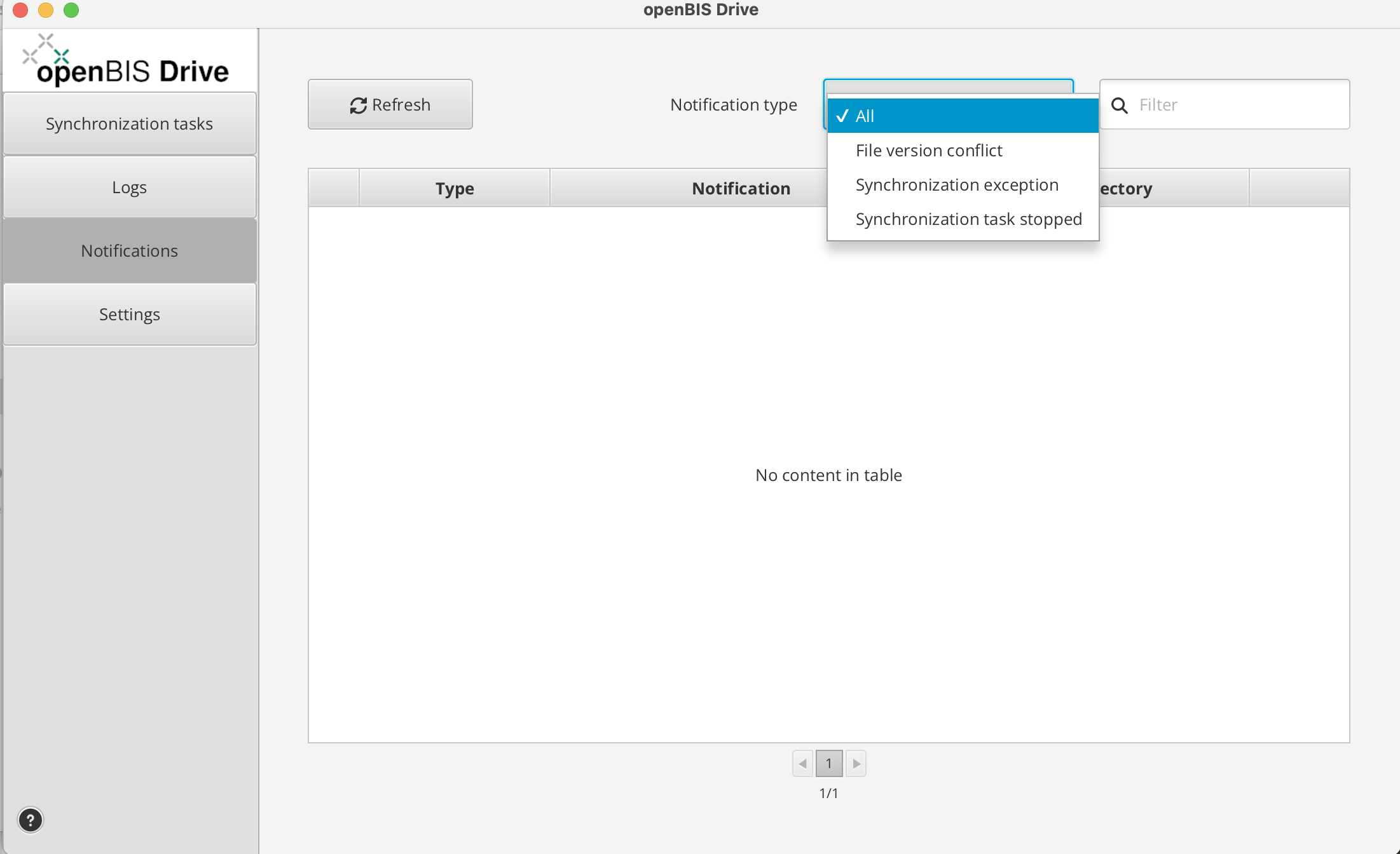
Notifications. Here you can see different types of notifications.
Settings. Here you see two different types of Settings:
General
You can specify the following:
if you want to start synchronization when you login.
which language to use.
the time interval for synchronization. Default is 2 minutes.
Adavanced settings. Here you can restore default ignore settings, if they have been mondified.
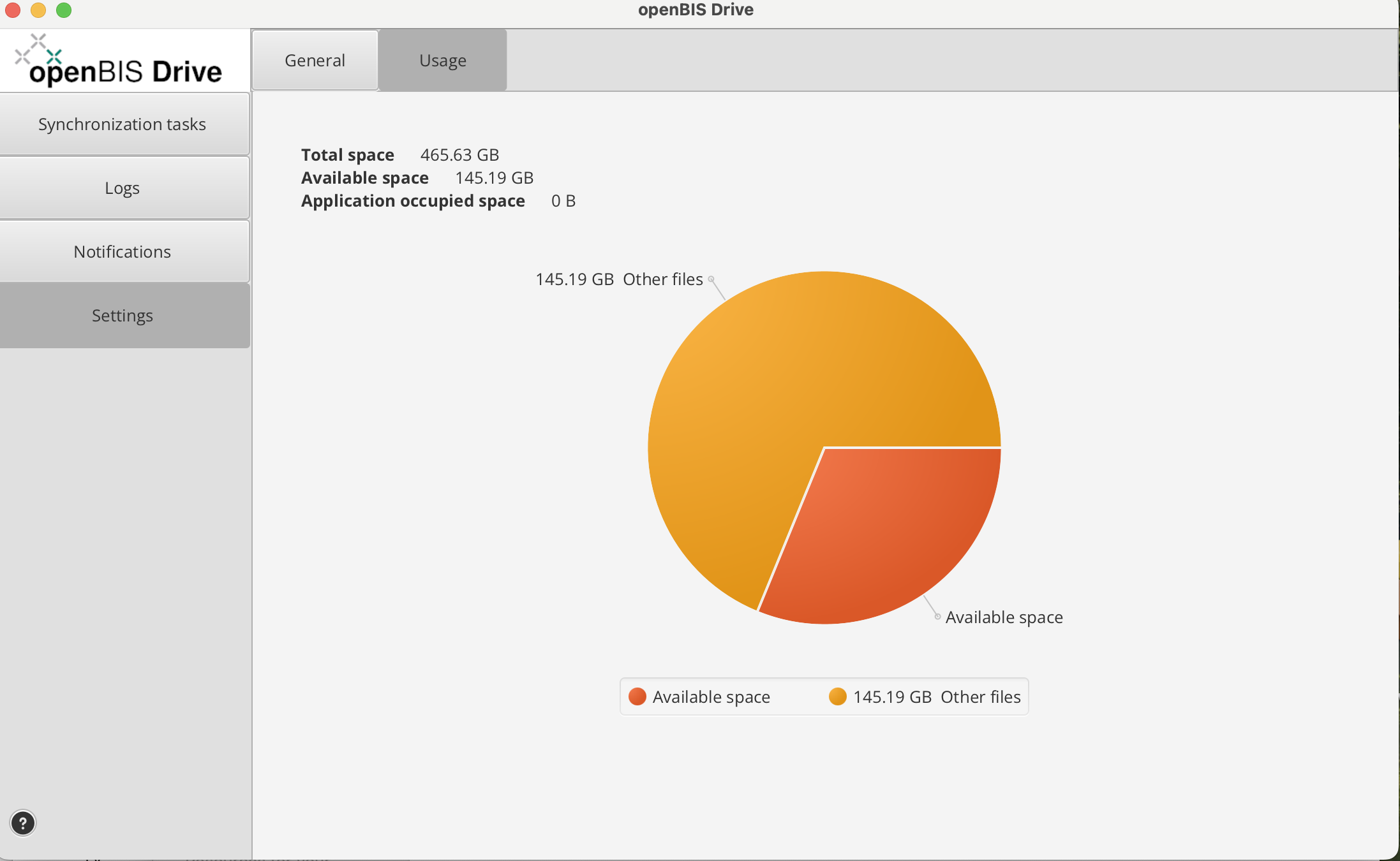
Usage. Here you can see the total local storage and how much of this storage is synced to openBIS.