New Entity Type Registration via User Interface
Entity types, i.e. Experiment/Collection, Object and Dataset types, as well as Property types and Controlled Vocabularies constitute the openBIS masterdata. They can be created by someone with Instance admin role in the admin openBIS UI.
The admin openBIS UI can be accessed via a URL of this type: https://openbis-xxx/openbis/webapp/admin/
where openbis-xxx is the name of the server specified in the openBIS configuration file, during the installation by a system admin.
Register a new Object Type
Parameters
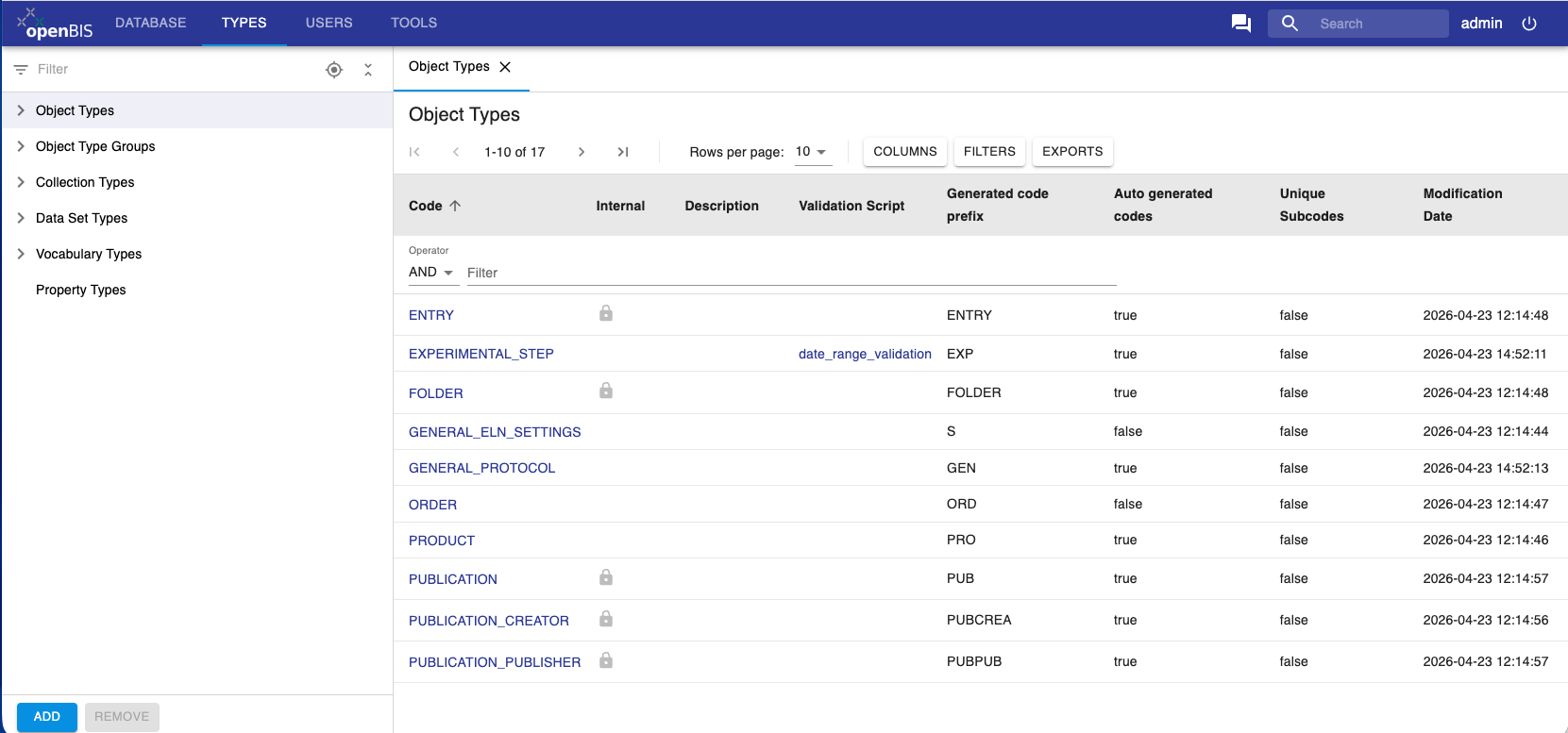
Select Types -> Object Types from the menu.
Click Add at the bottom of the page.
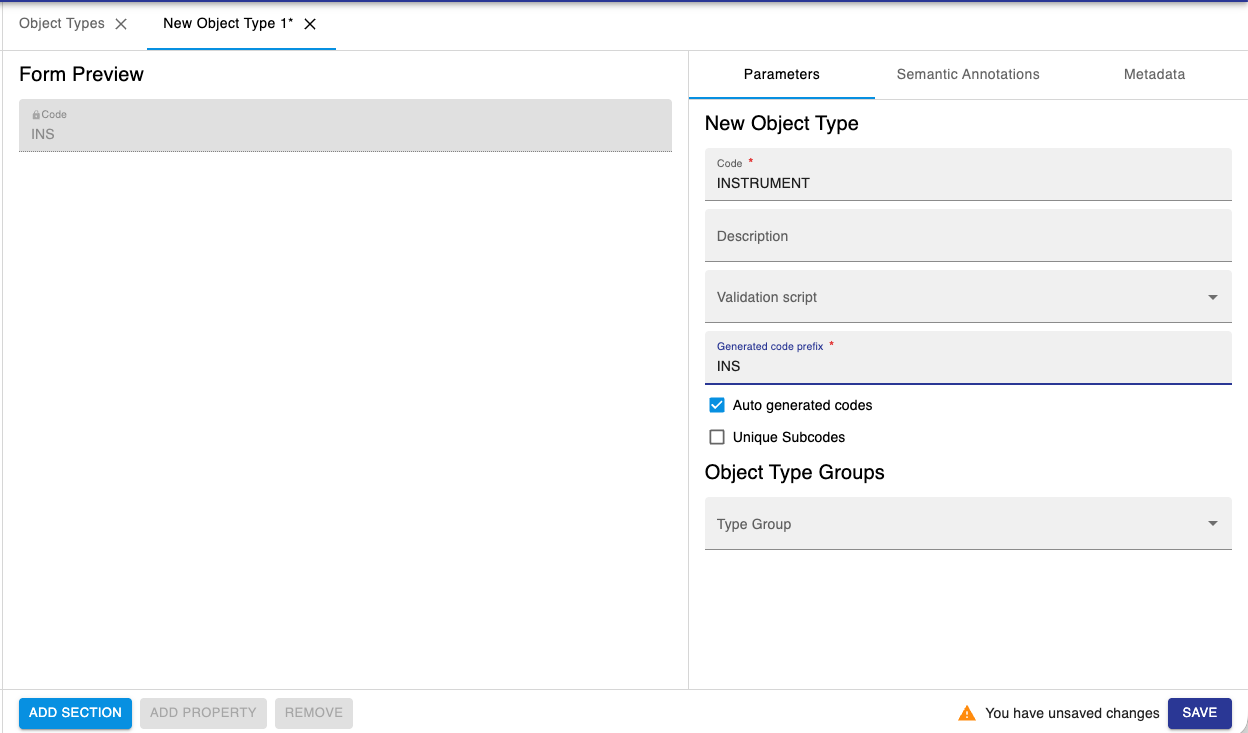
Enter a Code. E.g. INSTRUMENT. This is the name of the Object to create and is unique. Please note that Codes should be in capital letters, and they can only contain A-Z, a-z, 0-9 and _, -, .
Provide a Description (not mandatory).
Validation Script is used when we want to have validation on some data entries. This is done via a custom script (see Entity Validation Scripts)
Enter the Generated Code Prefix. As a convention, we recommended to use the first 3 letters of the Object type code (e.g. INS, in this case). This field is used by openBIS to automatically generate Object codes: the codes will be for example INS1, INS2, INS3, etc.
Leave Auto generated codes selected if you want to have codes automatically generated by openBIS.
Unique Subcodes is used for contained objects, which are not used in the ELN. Ignore this option.
Click Add Section at the bottom of the page. Sections are ways of grouping together similar properties. Examples of sections used in the ELN are General info, Storage info, Experimental Details, etc.
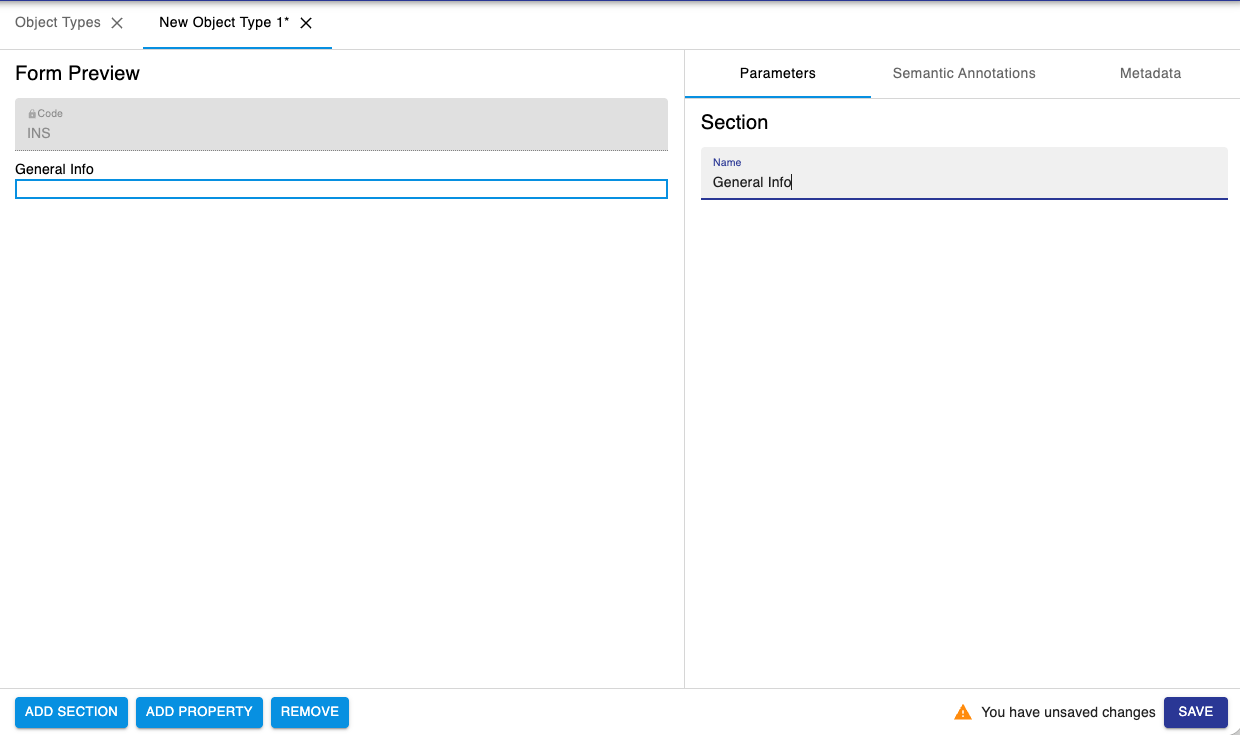
Add properties inside the Section, by clicking the Add Property button at the bottom of the page. To remove a property, use the Remove button at the bottom of the page.
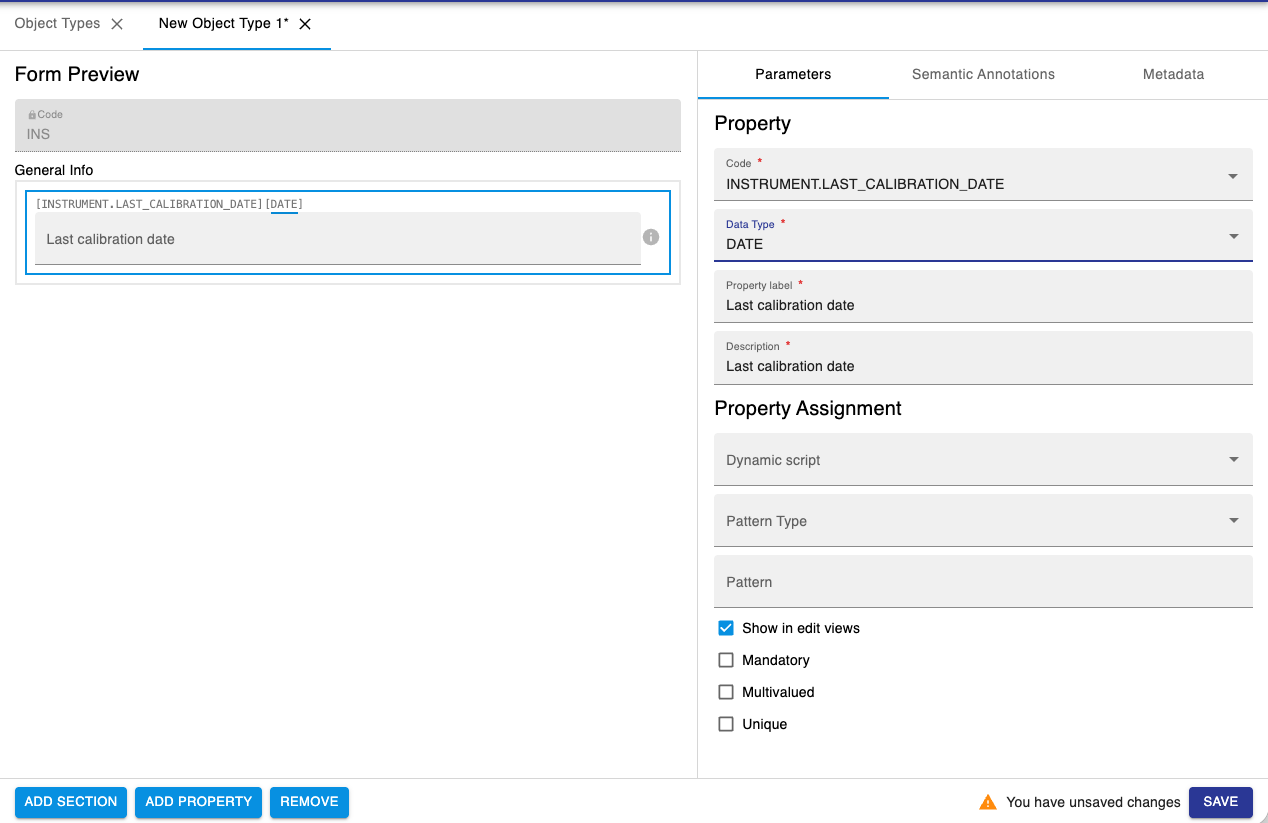
Click Save at the bottom of the page.
Please note that new Object types created in the admin UI, do not automatically appear in ELN drop downs, but they have to be manually enabled, as described below in this page.
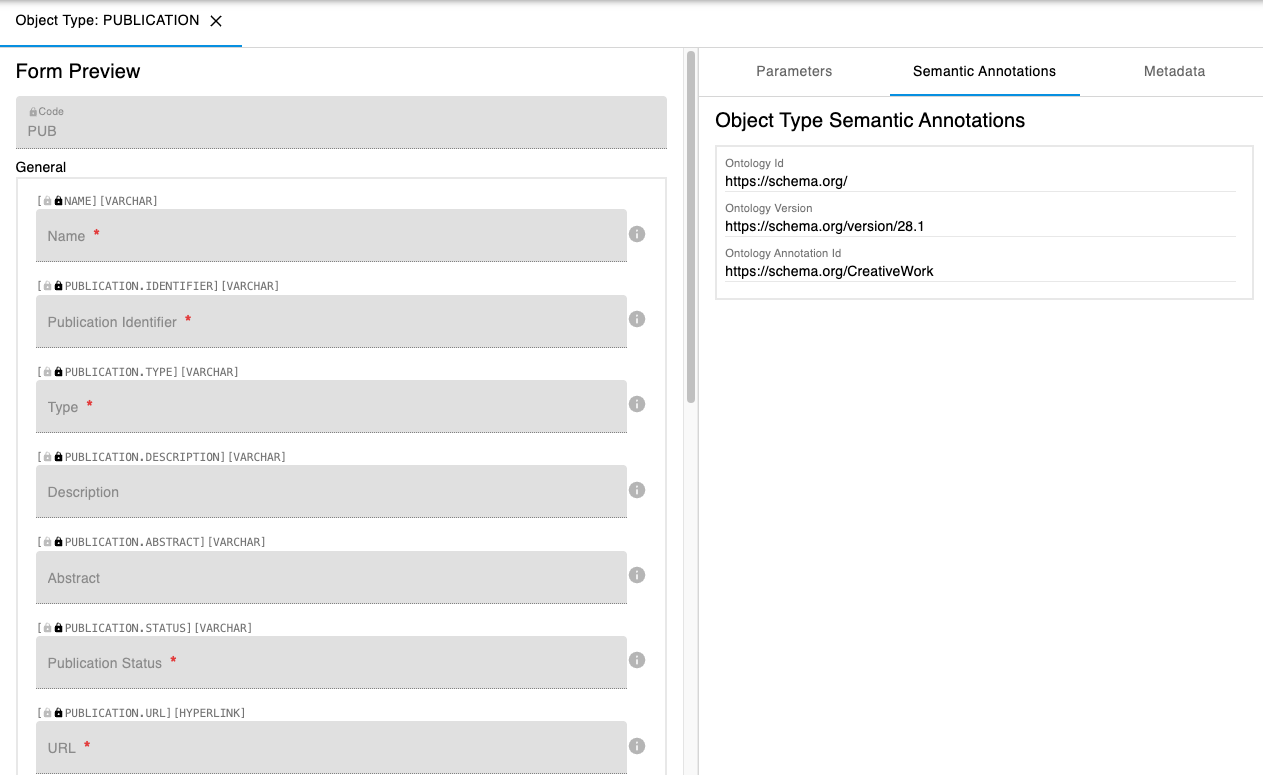
Semantic Annotations
It is possible to semantically annotate Object types, as shown in the example below.
Metadata
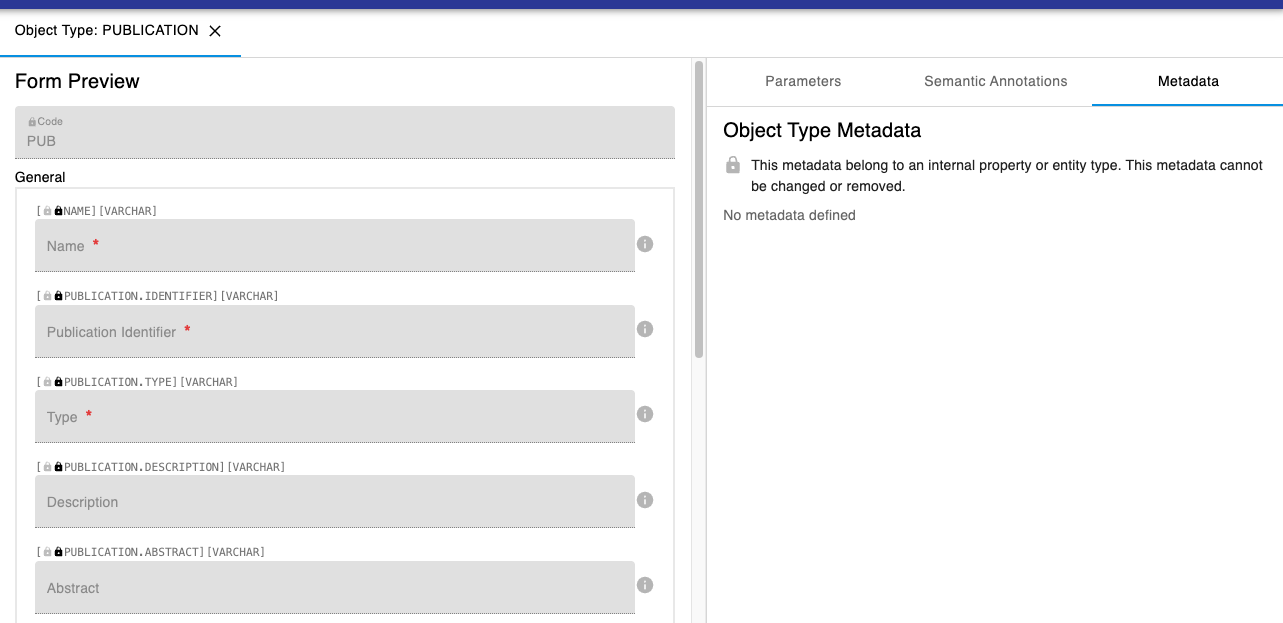
It is possible to define metadata specific to the Object type. This can be useful for example to configure plugins in the admin UI instead of having the configuration in a configuration file.
Registration of Properties in Types
Parameters
When registering new properties, the fields below need to be filled in.
Property

Code. Unique identifier of the property. Codes can only contain A-Z, a-z, 0-9 and _, -, .
Data Type. See below for data types definitions.
Label. This is the property/column header that the user can see in the ELN.
Description: The description is shown inside a field, to give hints about the field itself. In most cases, label and description can be the same.
Property Assignment

Dynamic Script: Script for calculated properties. See Dynamic properties
Pattern Type. Some property types allow to specify a pattern to validate values of a property. There are a few pattern types that can be specified
NONE: Disables pattern validation
PATTERN: Allows to specify RegExp.
RANGES: Comma-separated list of strings in quotes, e.g “a”, “b”, “c”
VALUES: Comma-separated list of ranges in %d-%d format, e.g 1-10, 12-15
Pattern. text field. Validation rules to validate value of the given property.
Additional fields
Depending on the property types, additional optional features may be available.

Show in edit views: Editable in the ELN interface. In some cases, metadata is automatically imported by scripts and this should not be changed by users in the interface.
Mandatory: Field can be set as mandatory.
Multivalued. true/false. Whether a given property should be able to hold multiple values of the same type (e.g. Controlled Vocabulary or Object).
Unique. true/false. Enables validation of value inserted into this property to be unique among all entities of this type.
Property Data Types
The following data types are available in openBIS.

ARRAY_INTEGER: comma-separated list of integers. Syntax: [1, 2, 3]
ARRAY_REAL: comma-separated list of decimal numbers. Syntax: [1.2, 2.5, 3.7]
ARRAY_STRING: comma-separated list of string values. Syntax: [“string 1”, “string 2”, “string 3”]
ARRAY_TIMESTAMP: comma-separated list of dates with timestamps Syntax: [“2026-02-04 12:56:31”, “2026-04-10 11:50:23”]
BOOLEAN: true or false
CONTROLLEDVOCABULARY: list of predefined values
DATE. Date field
HYPERLINK: URL
INTEGER: integer number
JSON: json-validated text field
MULTILINE_VARCHAR: long text. It is possible to enable a Rich Text Editor for this type of property, as decribed below in this page.
OBJECT. 1-1 connection to one or more specific object type.
REAL: decimal number
TIMESTAMP: date with timestamp
VARCHAR: one-line text
XML: to be used for Spreadsheet components, as described below in this page.
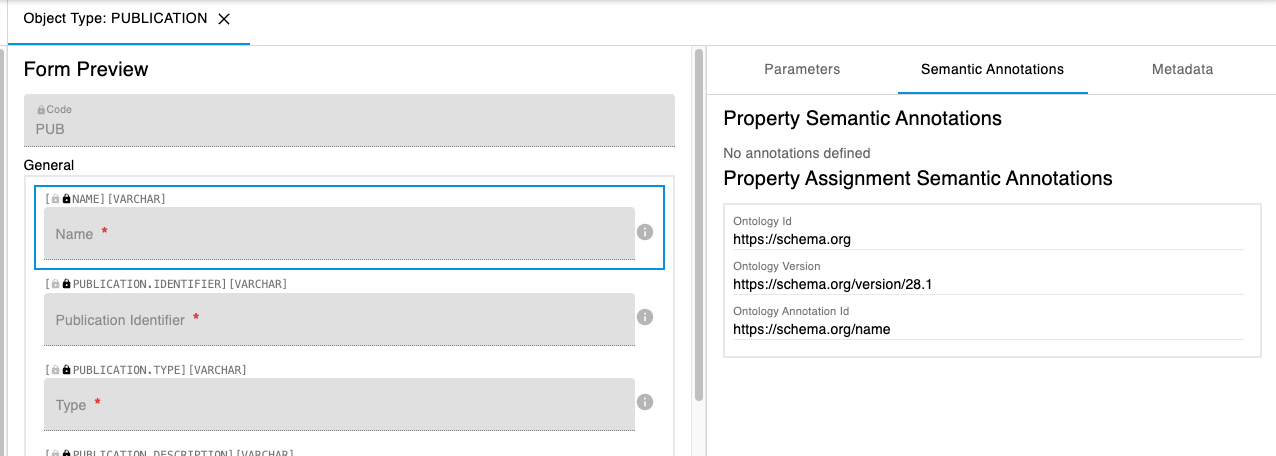
Semantic Annotations
It is possible to semantically annotate property types, as shown in the example below.
Metadata
It is possible to add metadata to property types. One possible use case for this is to specify some custom widgets available for use in the ELN UI:
Word Processor
Spreadheet
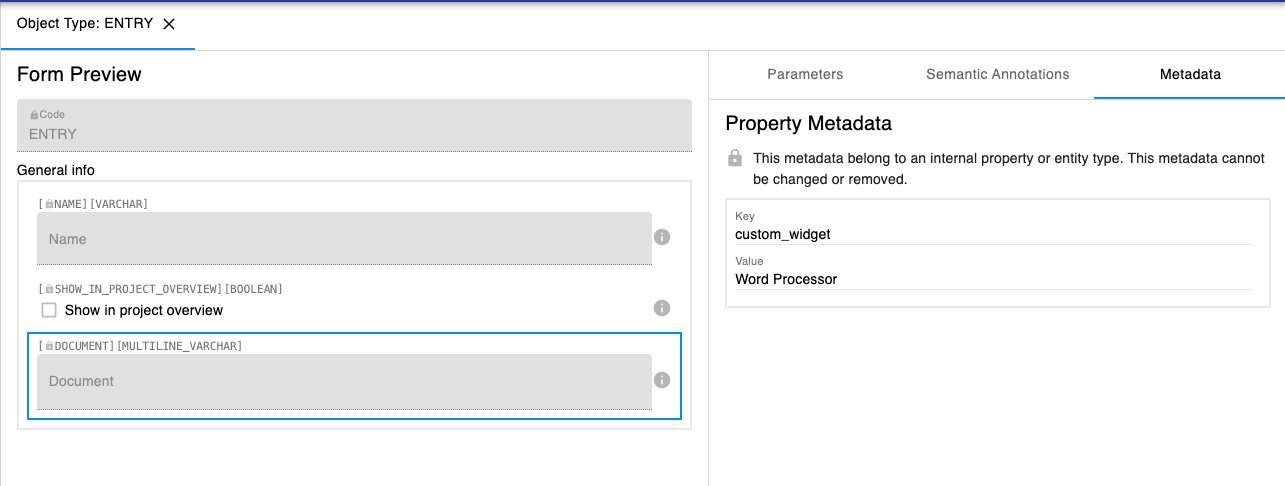 This can also be done from the ELN interface, in the Settings (see below)
Considerations on properties registration
If you create a property with code “PROJECT”, you should not use the label “Project”. This will give an error if you use XLS Batch registration/update, because openBIS considers this to be an openBIS Project.
If you assign two properties with the same label to the same type, they will be exported using their code in the XLSX export.
Properties overview
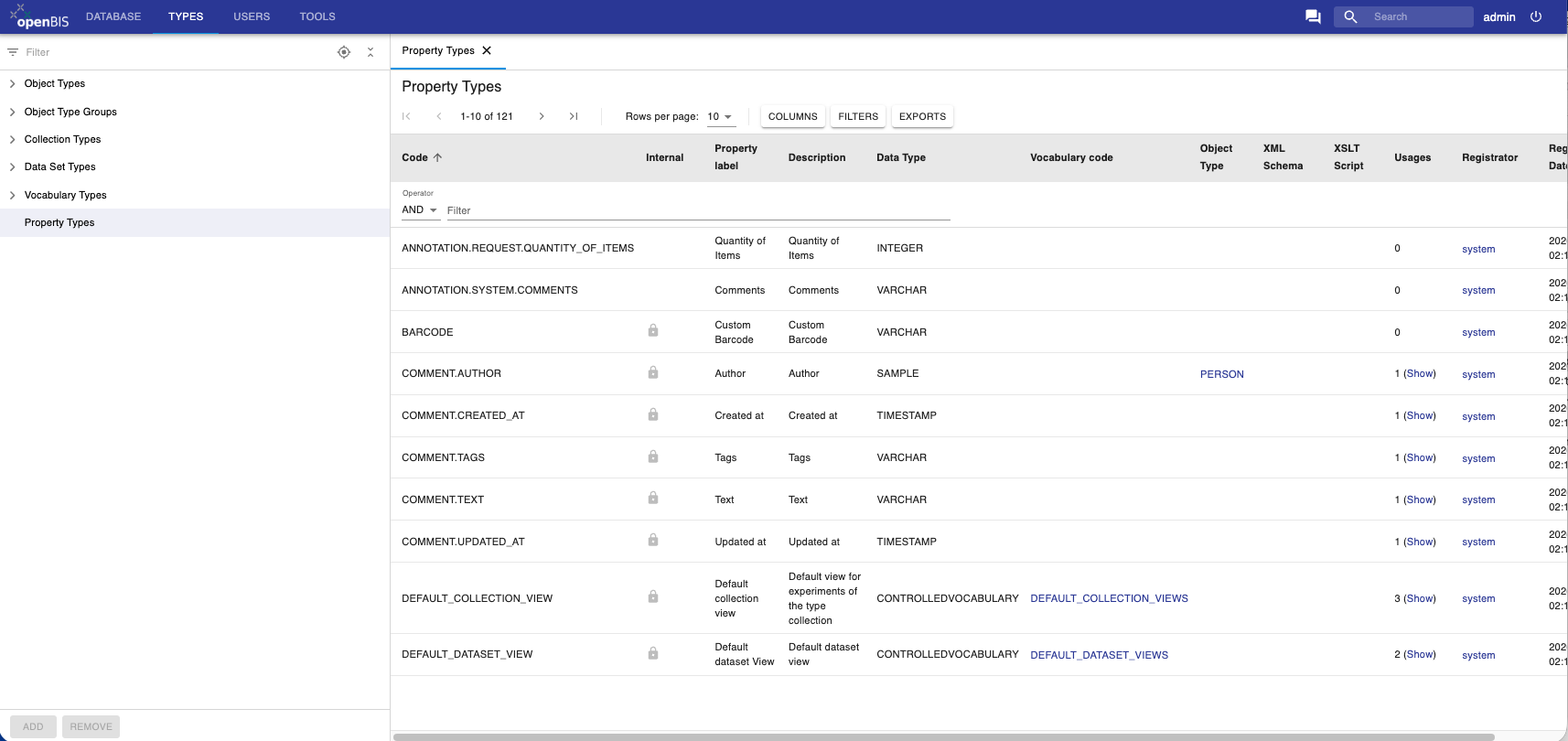
The overview of all properties registered in openBIS and their assignments to types is available under the Types section in the admin UI, as shown below.
Controlled Vocabularies
Controlled vocabularies are pre-defined lists of values for a given field.
New Vocabularies can be added, by clicking the Add button at the bottom of the page.
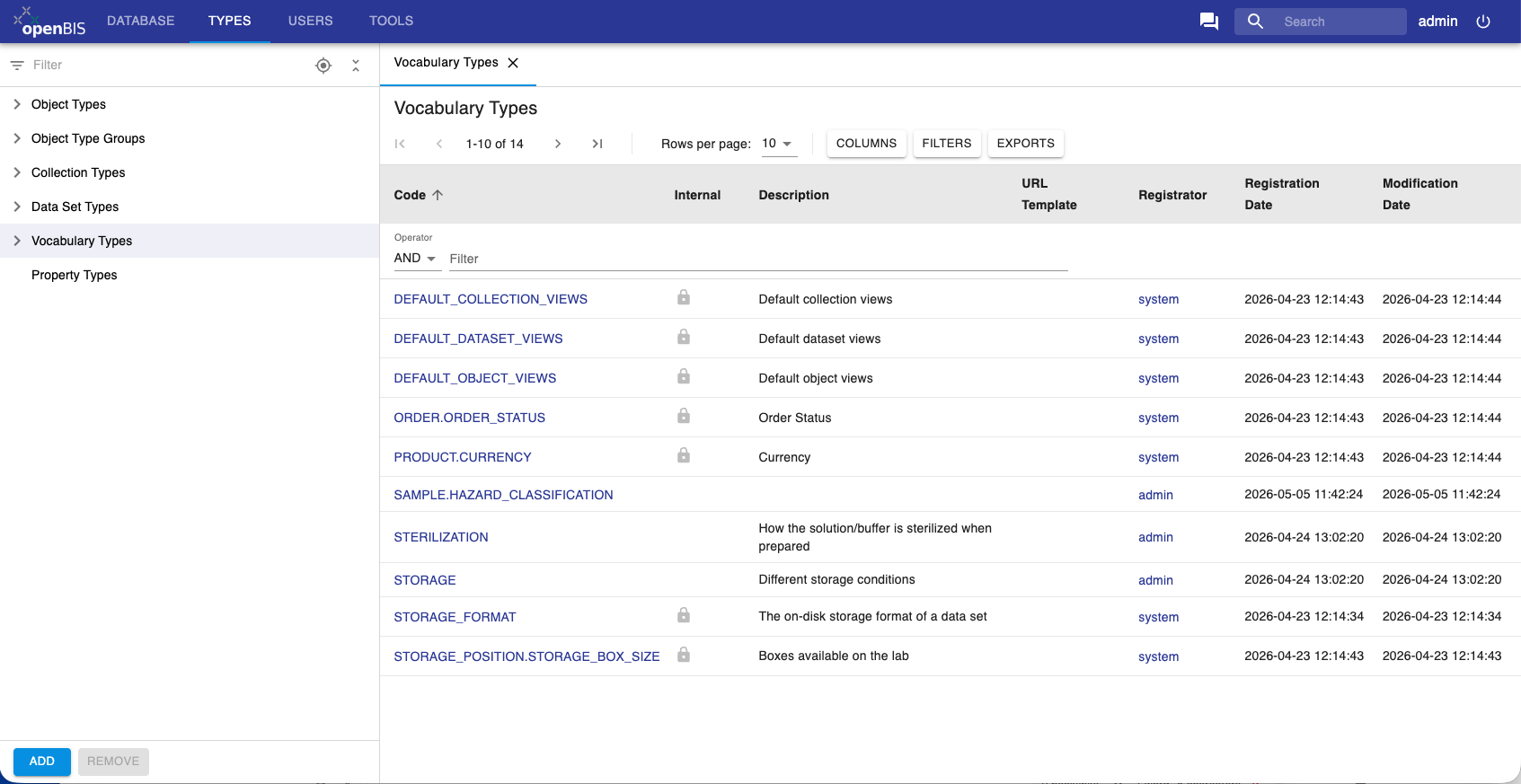
When registering a new vocabulary, a Code for the vocabulary needs to be entered. This corresponds to the name of the vocabulary, and it is a unique identifier. Codes can only contain A-Z, a-z, 0-9 and _, -, .
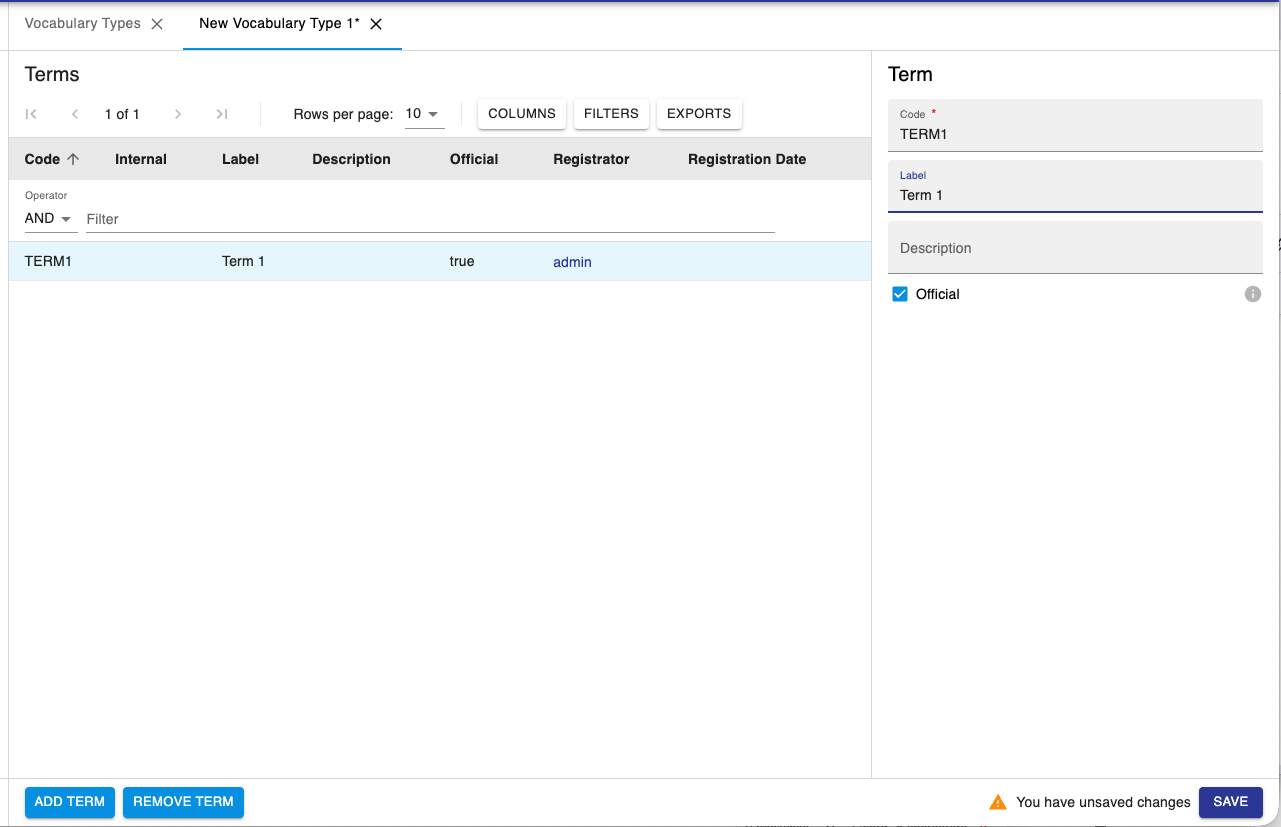
To add terms to the list click Add Term at the bottom of the page. Vocabulary terms always have a code and a label: the code is unique and contain only alpha-numeric characters; labels are not necessarily unique and allow also special characters. If the label is not defined, codes are shown.
After creating the vocabulary and registering the terms, remember to Save.
Object Type Groups
From openBIS 7.0 it is possible to have Object Type Groups. This feature is currently only available in the admin UI, but will be extended to the ELN UI. It is possible to create groups of Object Types, and these groups can be used for filtering.
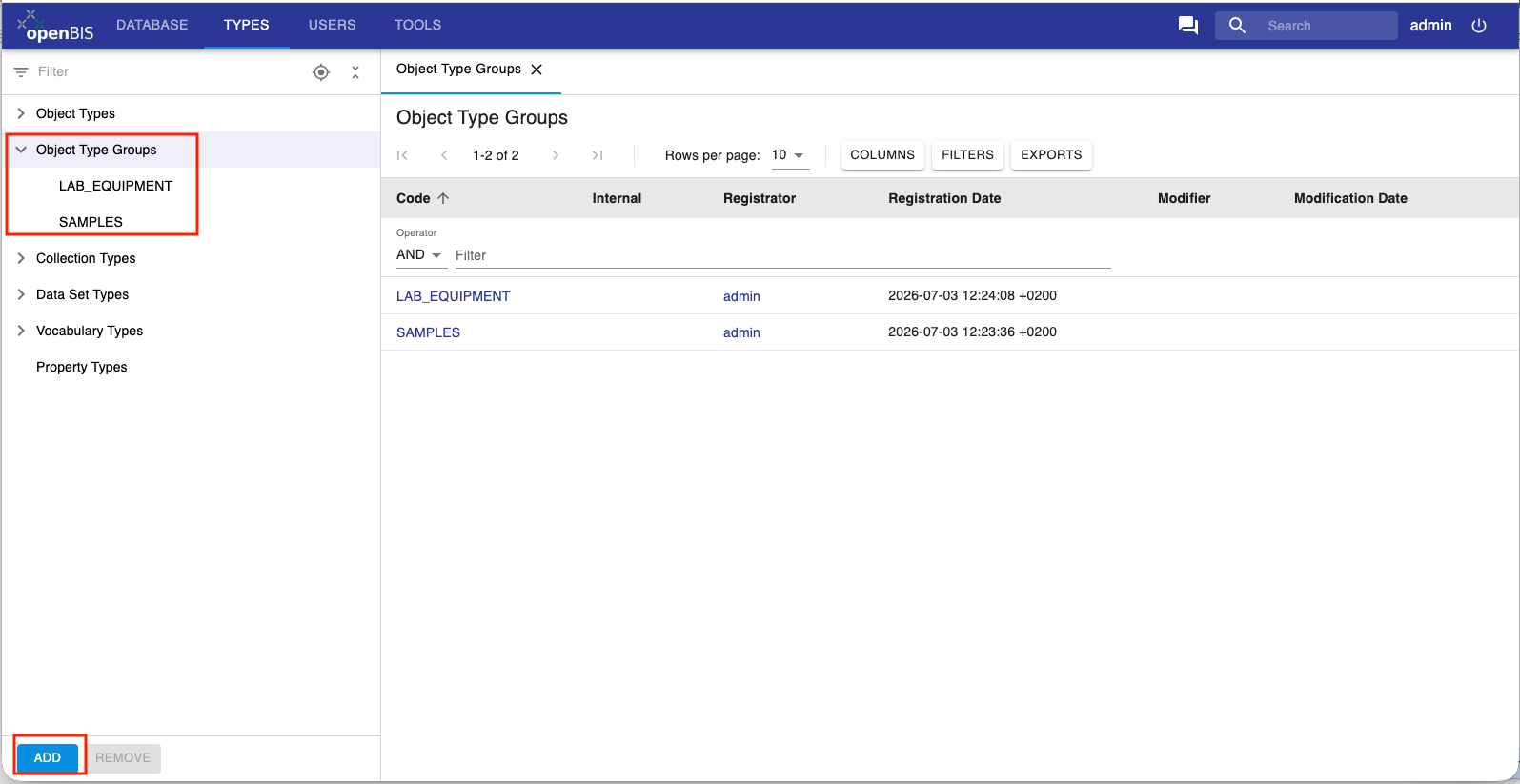
To create a new group, select Object Type Groups from the menu and click the ADD button at the bottom of the page.
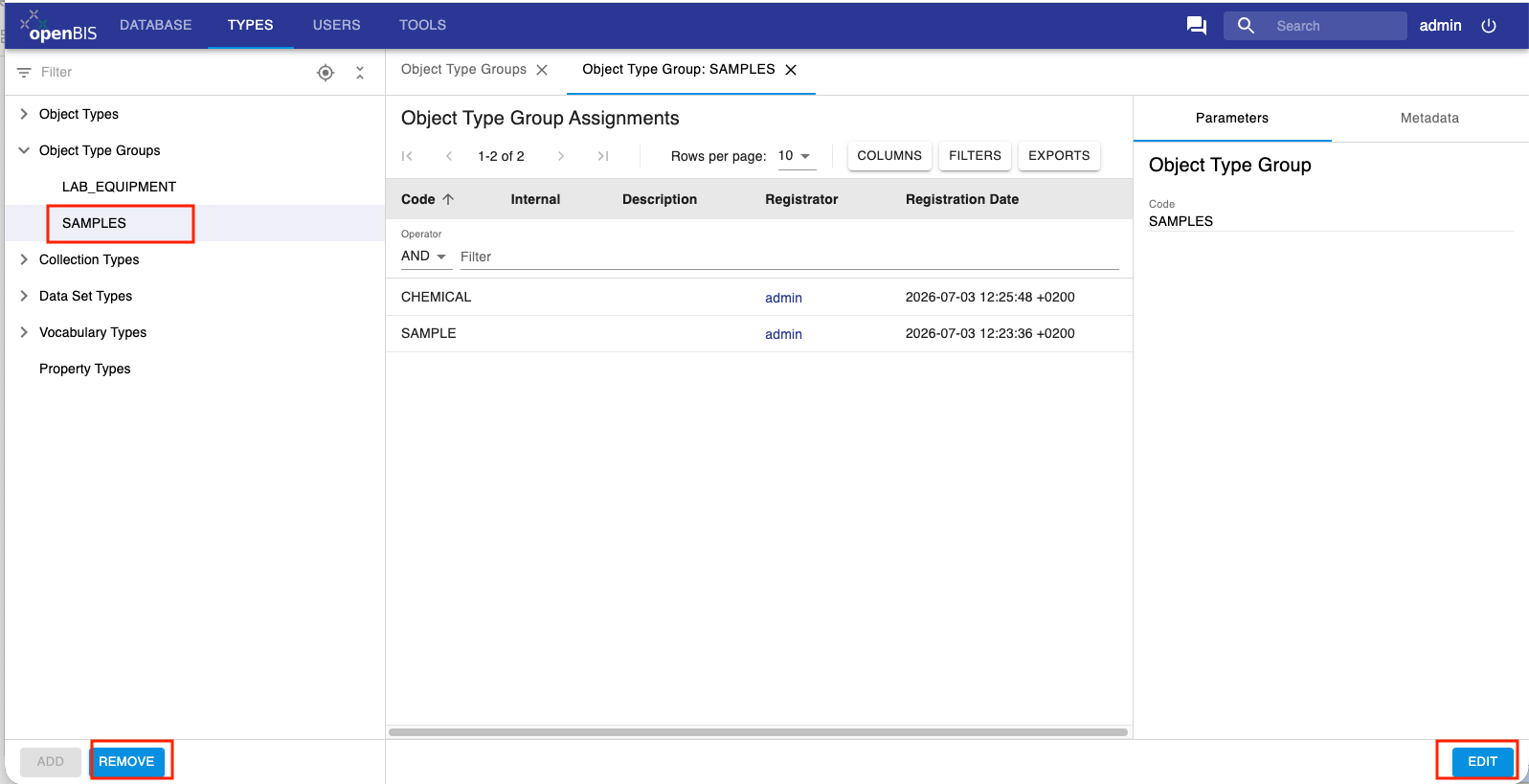
Once a group is created, you can add Object Types to the group by clicking the EDIT button at the bottom right corner of the page. To remove a group, you can click on REMOVE at the bottom left corner of the page.
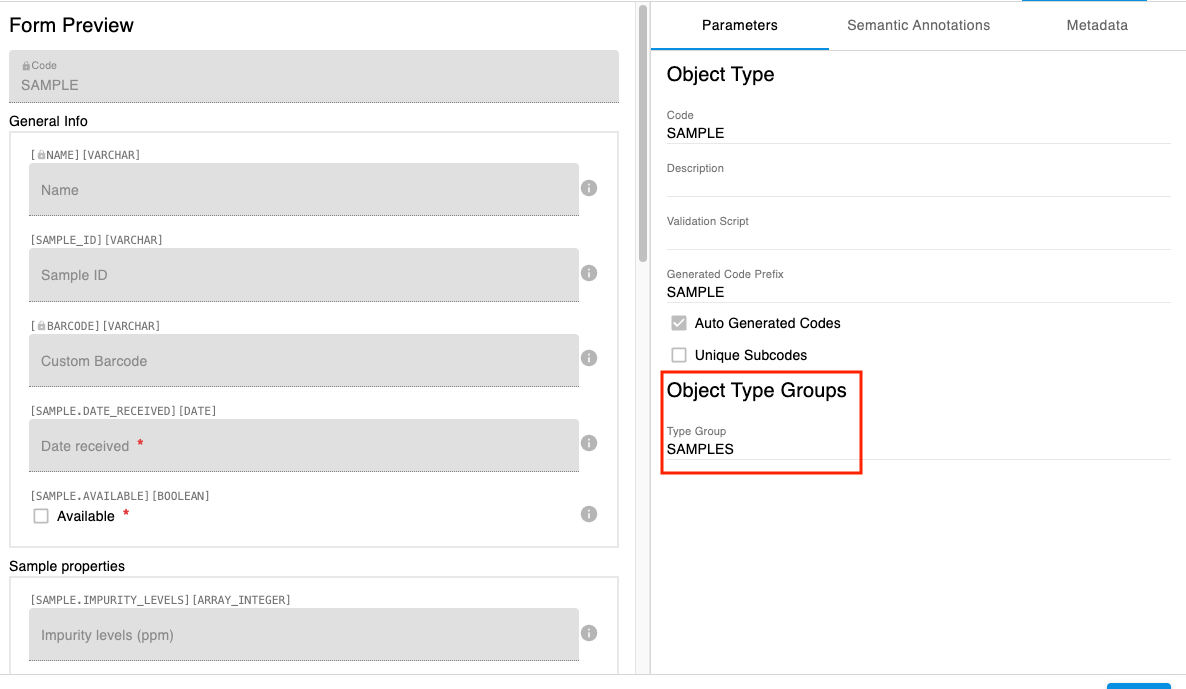
You can also add a group to an Object Type in the Object type form.
Register a new Experiment/Collection type
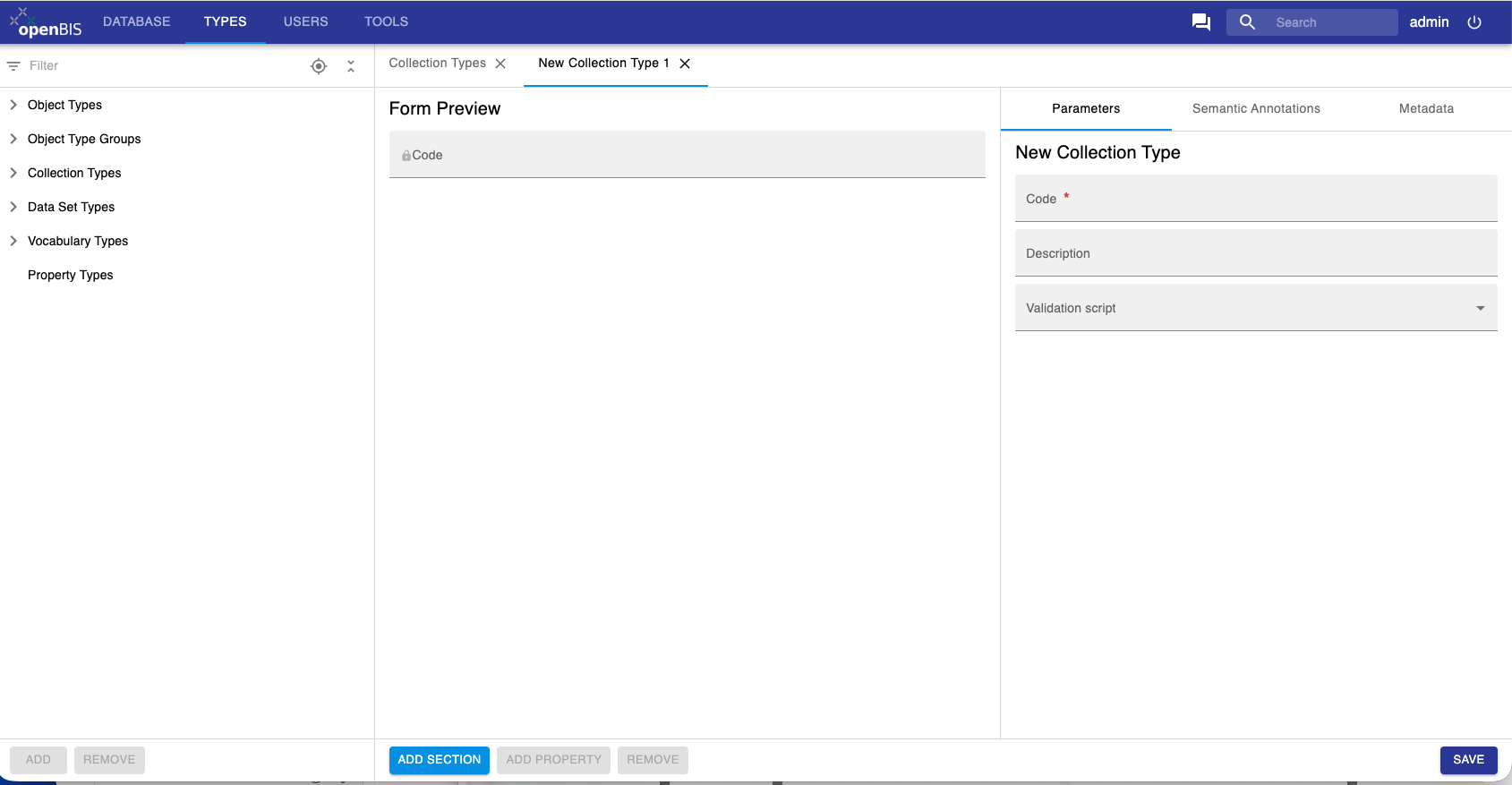
The registration of a new Collection type is very similar to the registration of Object types. For Collection Types, you only need to provide a Code (which is a unique identifier), Description and add a Validation script if you want to have metadata validation (see Entity Validation Scripts).
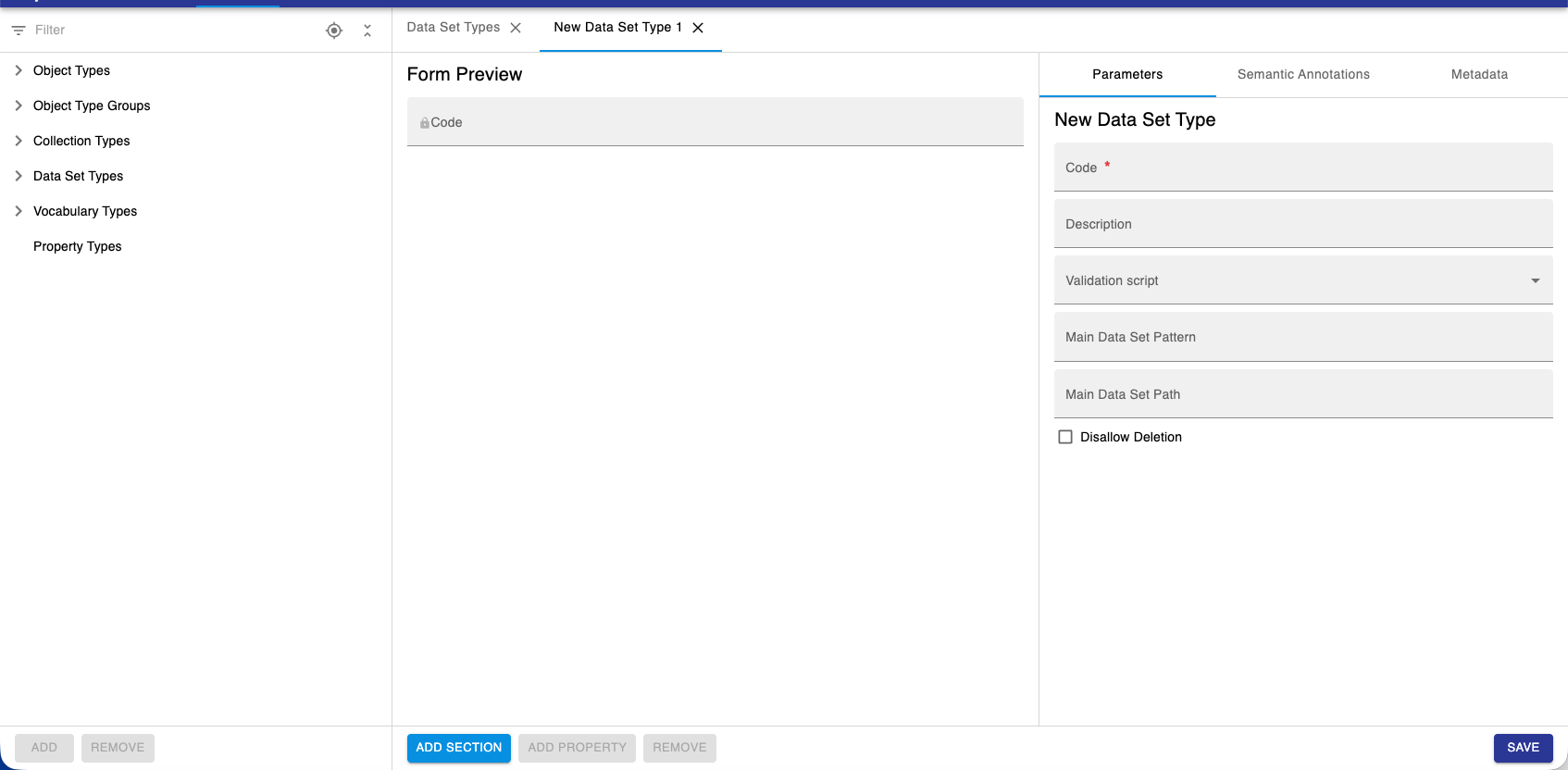
Register a new Dataset type
The registration of a new Dataset types is similar to the registration of Object types.
It is possible to disallow deletion for a given dataset type.
Enable Rich Text Editor or Spreadsheet Widgets in ELN UI
For certain fields, it is possible to enable the use of a Rich Text Editor (RTE) or a spreadsheet component. Instance admin rights are necessary for this.
The RTE can be enabled for properties of type MULTILINE_VARCHAR. The spreadsheet component can be enabled for properties of type XML.
Procedure:
Properties are defined when creating new entity types (Datasets, Objects, Experiments/Collections)
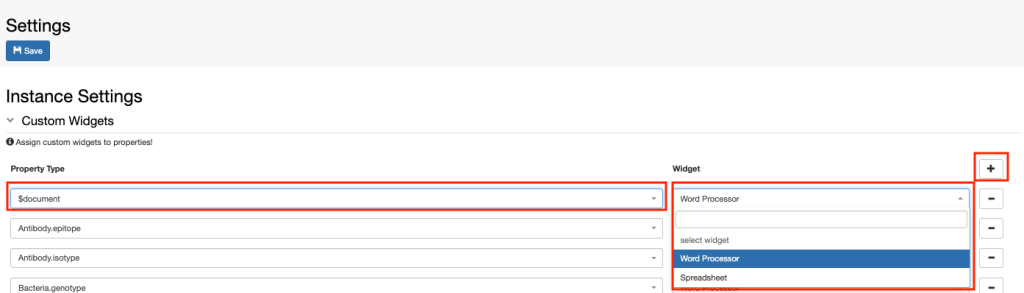
To set a property as RTE or spreadsheet go to the Settings, under Tools in the ELN UI
Select /ELN_SETTINGS/GENERAL_ELN_SETTINGS
Enable editing and scroll down to the Custom Widgets section
Click the + button on the same line as Property Type and Widget, as shown below
A new field will appear where you can select the property type and the widget. Choices are: Word Processor (=RTE) or Spreadsheet.
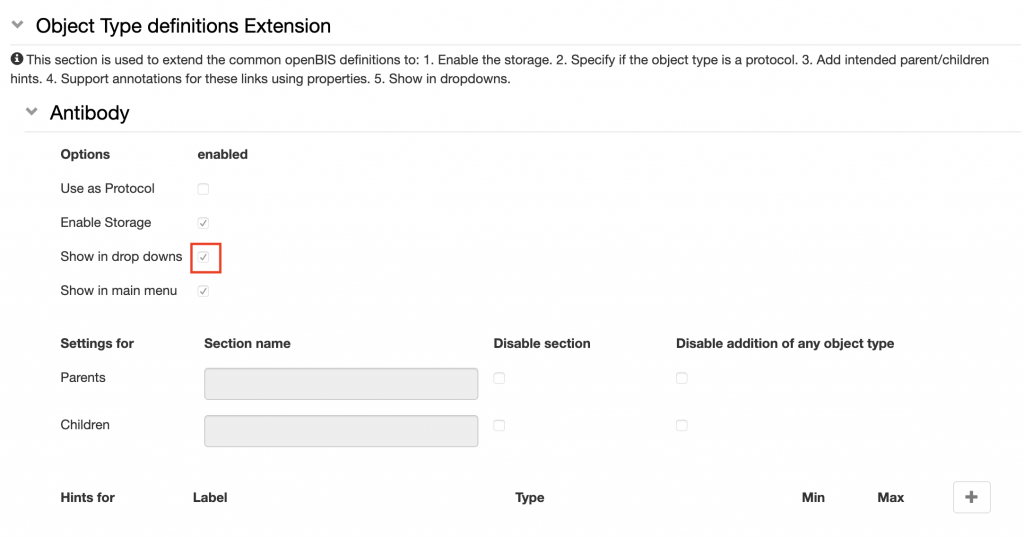
Enable Objects in ELN dropdowns
By default, no Object shows in dropdown menus in the ELN. Which object types should show in dropdown menus can be customised in the ELN Settings.
In the ELN UI, go to Settings under Tools
Navigate to the Object Type definitions Extension
Open one Object Type (e.g. Antibody)
Select show in drop downs
Save the Settings