Parents and children
Add parents and children
In every Object form, there are a Parents and Children sections where it is possible to specify links to other Objects (see openBIS data model).
In the default Experimental Step and in the Entry, it is possible to specify links to materials, methods, equipment from the Inventory or to any other Object, e.g. another Experimental Step or Entry.
Parents are all samples/materials used in an experimental procedure, standard protocols from the inventory followed in the experimental procedure, the equipment used. It is also possible to set one Experimental Step/Entry as parent of a second Experimental Step/Entry, to keep the connection between the two.
The name of this section and which parents should be shown in the form, is customisable by the lab manager or group admin as described in Customise Parents and Children Sections in Object Forms
Adding a parent
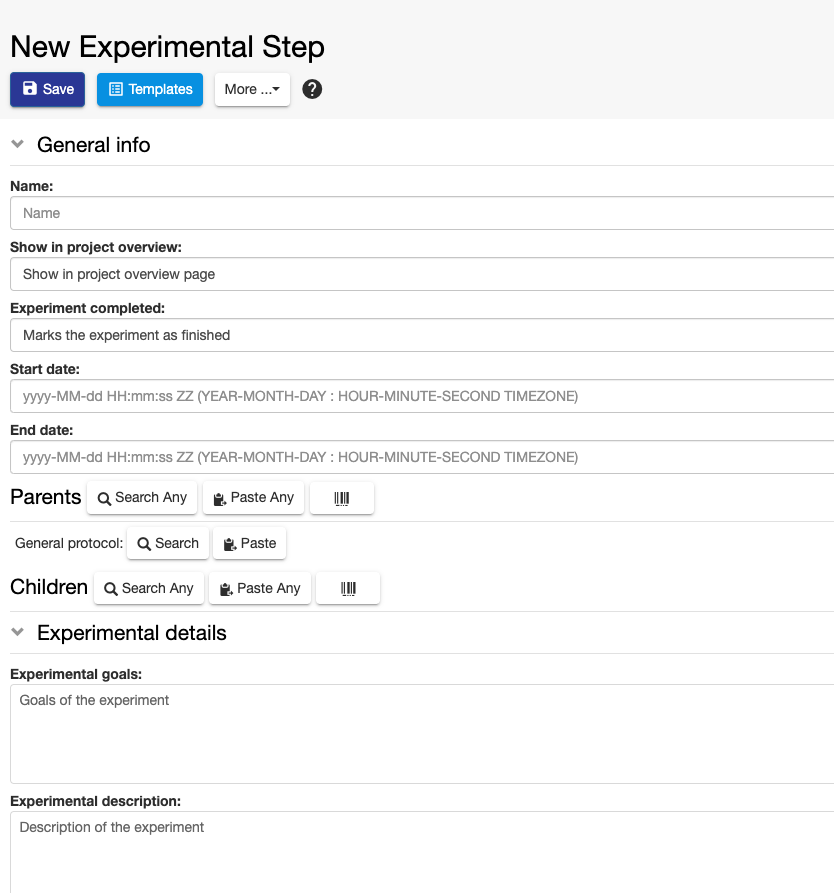
Adding a parent of a predefined type in the form
In the screenshot above, General protocol is predefined as parent type in the form. We have two options to add a parent of this predefined type:
1. Search
Click on the Search button.
Enter the name or code of the entity you want to add as parent.
Select the entity you want to add from the list presented to you.
The parent will be added only when you save the entity.

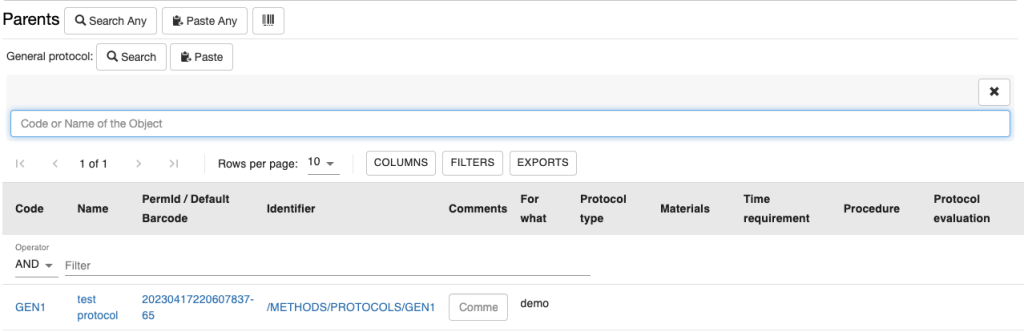
2. Paste
You may copy the identifier of an entity you want to add as parent from a file, or from an advanced search or from another ELN page. You can paste the identifier(s) in the Paste text field.
Click the +Add button

Adding parents of any available type
If you want to add a parent that is not specified in the Experimental Step form, you can use the Search Any or Paste Any options next to Parents.

1. Search Any
Click Search Any
Select the Object type for which you want to add a parent
Search by code or name as explained above
Click the +Add button
2. Paste Any
There are cases where you may want to add several parents of the same type or also of different types. In this case, we recommend to use the Advanced Search to find the entities you want to add. You can select the desired entities from the table and the Copy Identifiers button will become visible. You can copy the identifiers and paste them in the Paste Any field in the Experimental Step page, as shown below.
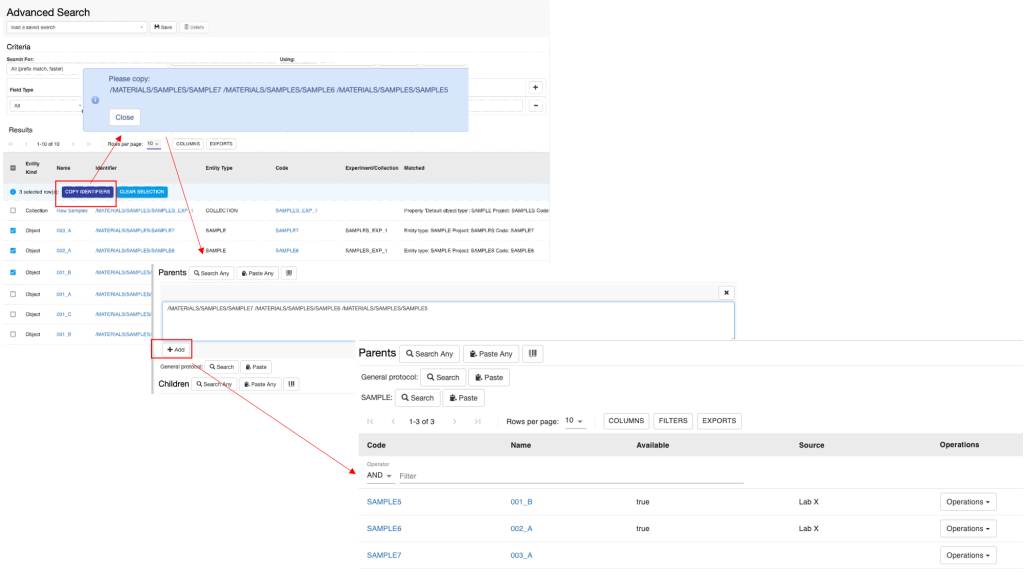
Adding parents via barcodes
If you want to add a parent that is registered in openBIS and has a barcode associated with it by scanning the barcode:
Click on the barcode icon in the Parents section
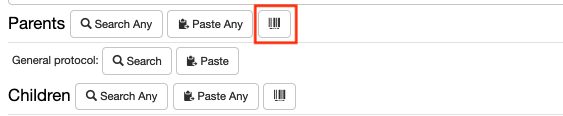
A Barcode/QR code reader window opens
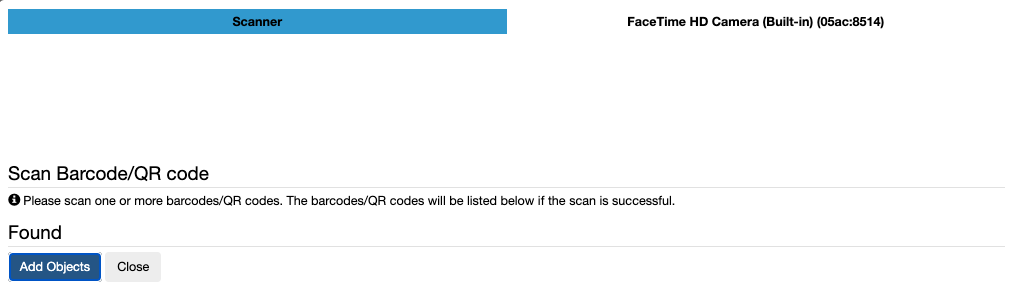
Scan the barcode/QR code of the entry you want to add as parent with a scanner or with the camera of a mobile device
Click on the Add Objects button
Close
Removing a parent
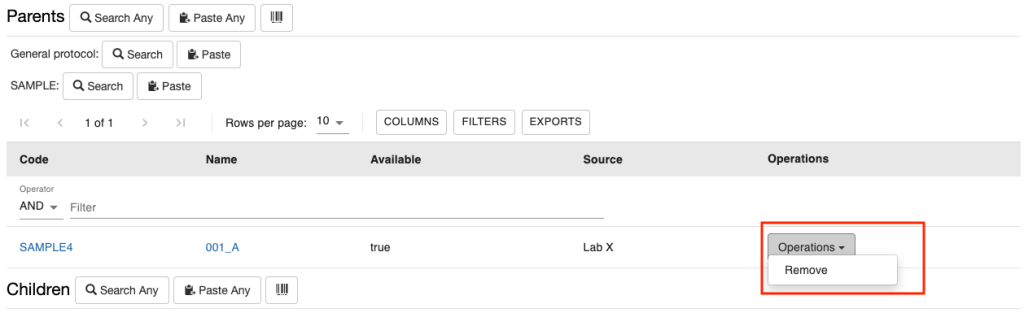
To remove a parent, choose Remove from the Operations drop down in the parent table, as shown below.
Adding and Removing Children
Children of Experimental Steps are usually sequential Experimental Steps, or products of the Experimental Step. As for the Parents section, this section can also be customised by a group admin or lab manager in the ELN Settings (Customise Parents and Children Sections in Object Forms).
The procedure for adding and removing children is the same as explained for parents.
Parent-child relationships between entries in lab notebook
In the Lab Notebook section, if you create a new Object from an existing Object, independently of the type, this will be automatically set as parent of the new Object. For example, if you create a new Entry (Experimental conditions 4) from an existing Entry (Experiemntal conditions 3), this will be automatically set as child of Experiemntal conditions 3, as shown below.
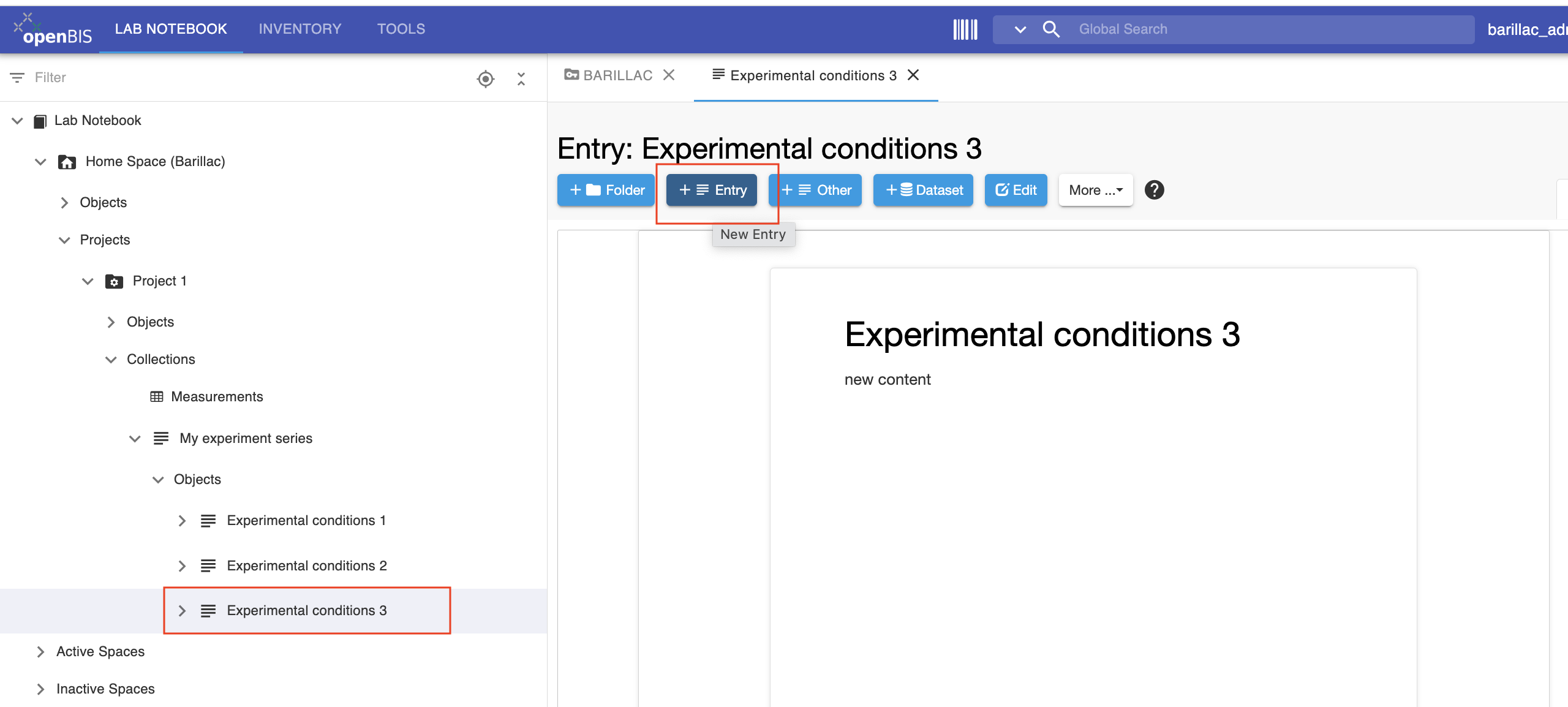

If you do not wish to have this relationship established, you need to create the new Object starting from the Experiment/Collection level.