Installation And Configuration Guide
Building openBIS
git clone https://sissource.ethz.ch/sispub/openbis.git
cd app-openbis-installer/
./gradlew clean
./gradlew build -x test "-Dorg.gradle.jvmargs=--add-opens=java.base/java.text=ALL-UNNAMED --add-opens=java.desktop/java.awt.font=ALL-UNNAMED"
Where the build is found?
./app-openbis-installer/targets/gradle/distributions/openBIS-installation-standard-technologies-SNAPSHOT-rXXXXXXXXXX.tar.gz
Why we disable tests to make the build?
They increase the time to obtain a build plus some tests could have additional environment requirements.
How to compile the V3 JS bundle used by the new Admin UI in production?
git clone https://sissource.ethz.ch/sispub/openbis.git
cd api-openbis-javascript/
./gradlew clean
./gradlew bundleOpenbisStaticResources -x test
The output can be found at: server-application-server/source/java/ch/systemsx/cisd/openbis/public/resources/api/v3
config.bundle.js config.bundle.min.js openbis.bundle.js openbis.bundle.min.js
Development of openBIS
Requirements
Software Requirements
IntelliJ IDEA CE
Postgresql Installation
Postgresql installation instructions for Ubuntu can be found here. Make sure to install a supported version of Postgresql: 11 or 18.
Edit the file /etc/postgresql/15/main/pg_hba.conf or /etc/postgresql/11/main/pg_hba.conf and change all
the lines with the type “local” (at the beginning) to use the method “trust” (at the end).
Do the same for “IPv4 local connections” and “IPv6 local connections”. Save the file and restart the service with
sudo systemctl restart postgresql.
Project Setup in IntelliJ IDEA
File -> New -> Project From Existing Sources
Select the build folder to load the gradle model
After the model is loaded execute the tasks:

openBISDevelopementEnvironmentASPrepare
openBISDevelopementEnvironmentASStart
openBISDevelopementEnvironmentDSSStart
Source Code Auto Formatting
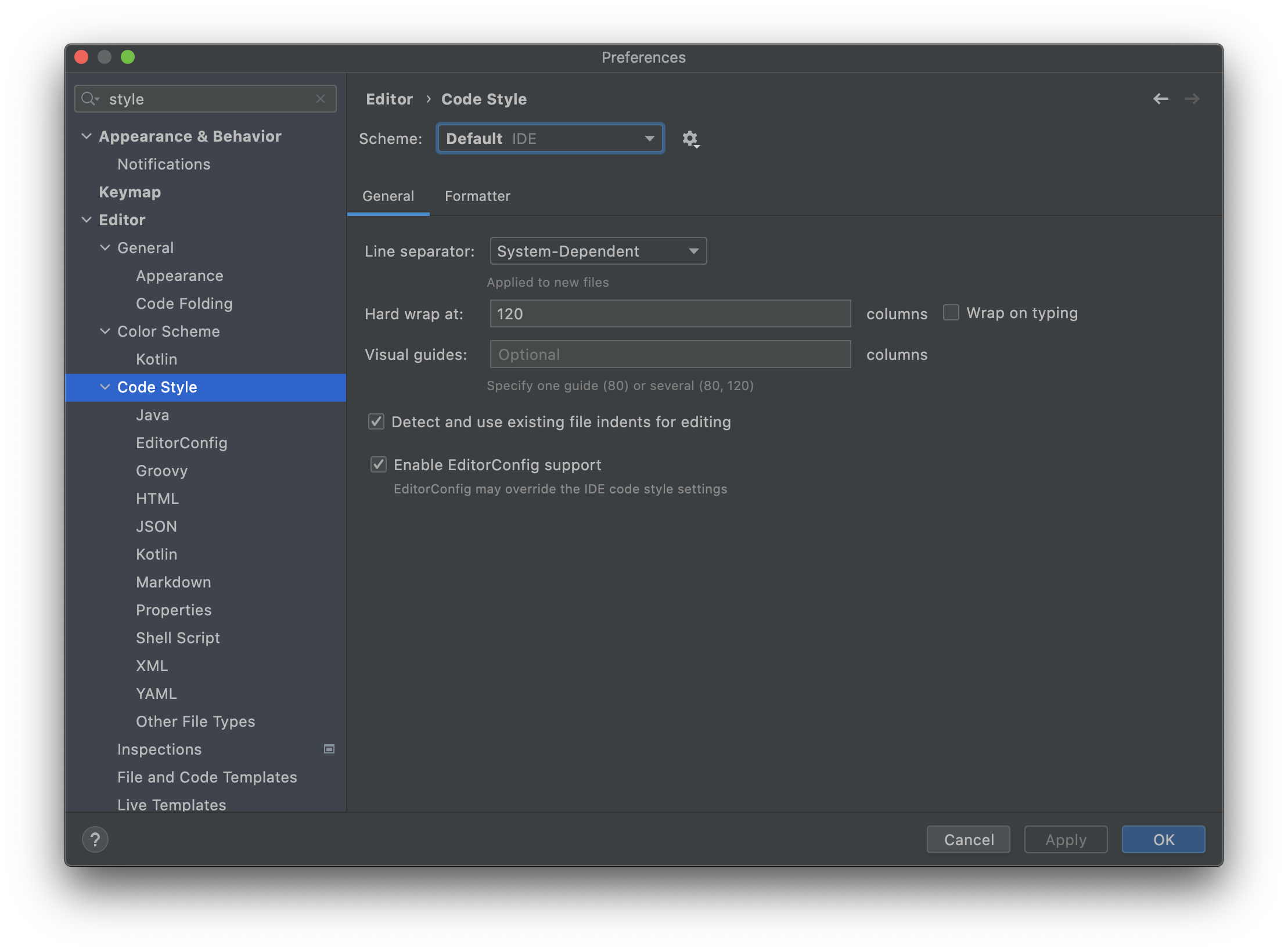
OpenBIS source code uses a particular style preset that guarantees all code is formatted uniformly.
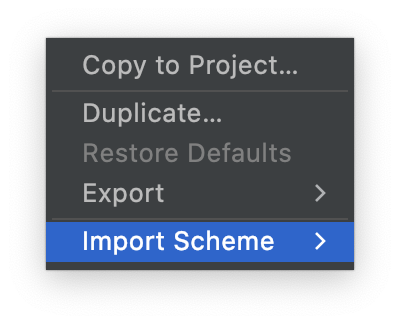
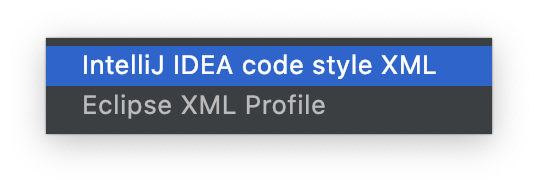
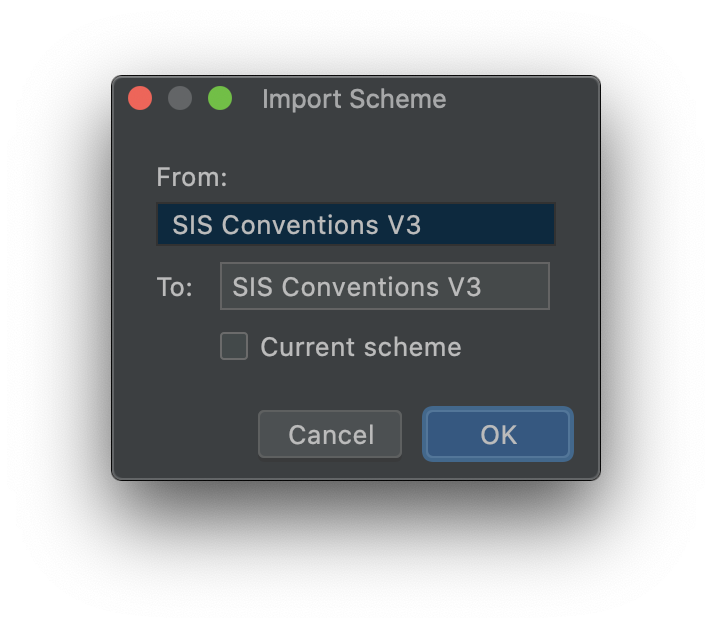
To make use of the preset go to File/Settings or IntelliJIDEA/Preferences depending on your OS.
Then import the XML file under ‘docs/codestyle/SIS_Conventions_IntelliJ_V3.xml’. See images below:
Commit Messages Formatting
OpenBIS source code commit messages use a particular formatting.
This formatting guarantees that there is a User Story behind it.
To ensure commits follow the formatting ‘Git Hooks’ are provided.
Just copy them from the root folder of this repo run the next command:
%/> cp ./docs/hooks/* ./.git/hooks/
%/> git add README.md
%/> git commit -m "Test incorrectly formatted message"
Aborting commit. Your commit message is missing an issue number ('SSDM-XXXXX:')
Source Code Copyright Header
OpenBIS source code is licensed under SIS copyright and licensed under ‘Apache 2 License’:
http://www.apache.org/licenses/LICENSE-2.0
To guarantee all new source files contain the appropriate license a preset is provided.
To make use of the preset go to File/Settings or IntelliJIDEA/Preferences depending on your OS.
Then import the XML file under ‘docs/copyright/Copyright_IntelliJ.xml’ under the copyright section as the image below indicate.
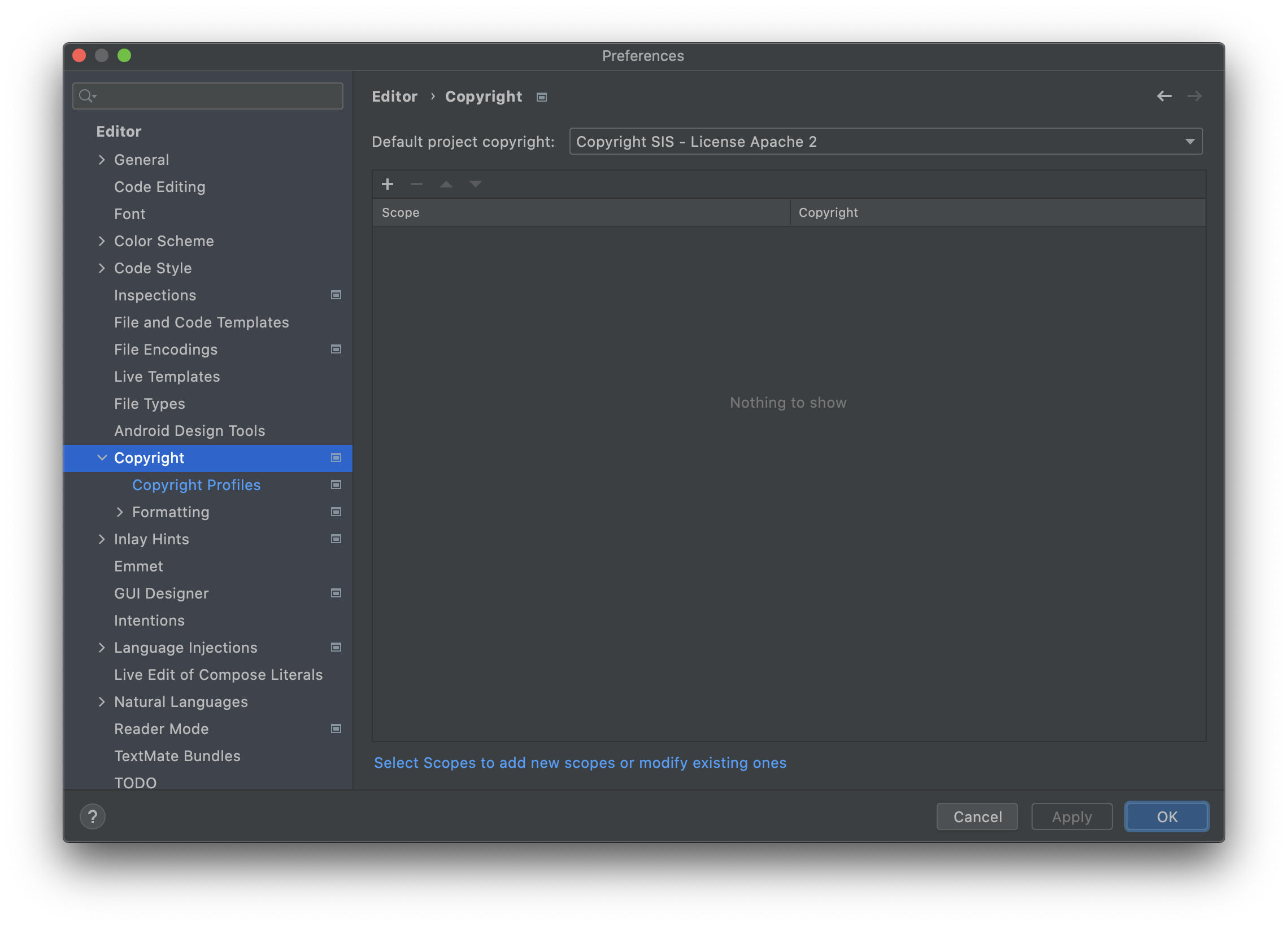
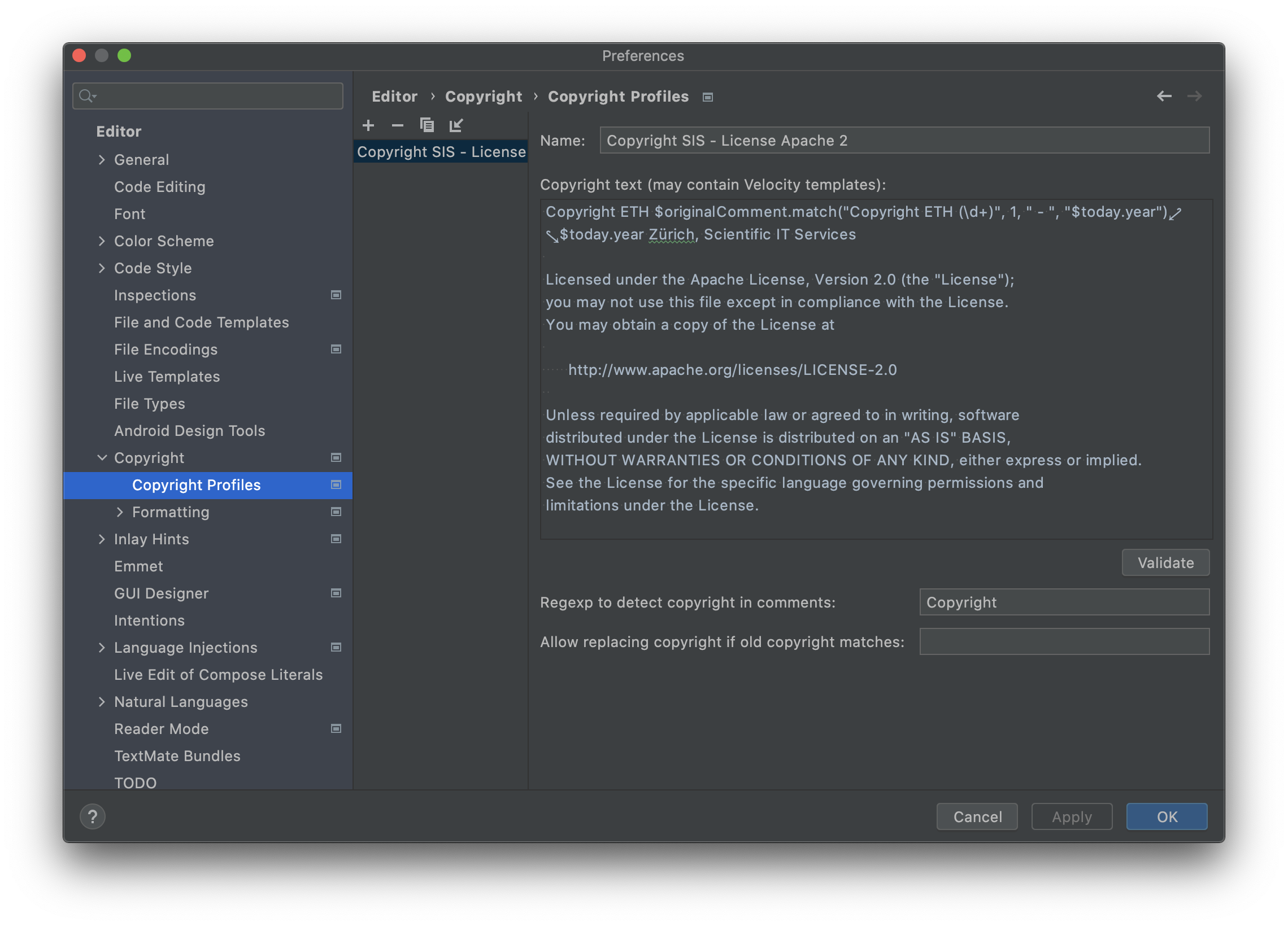 Last, set the Copyright Profile under the Copyright section as the image below indicate:
Typical Errors
IntelliJ can’t find package com.sun.*, but I can compile the project using the command line!
Turn off “File | Settings | Build, Execution, Deployment | Compiler | Java Compiler | Use –release option for cross-compilation”.
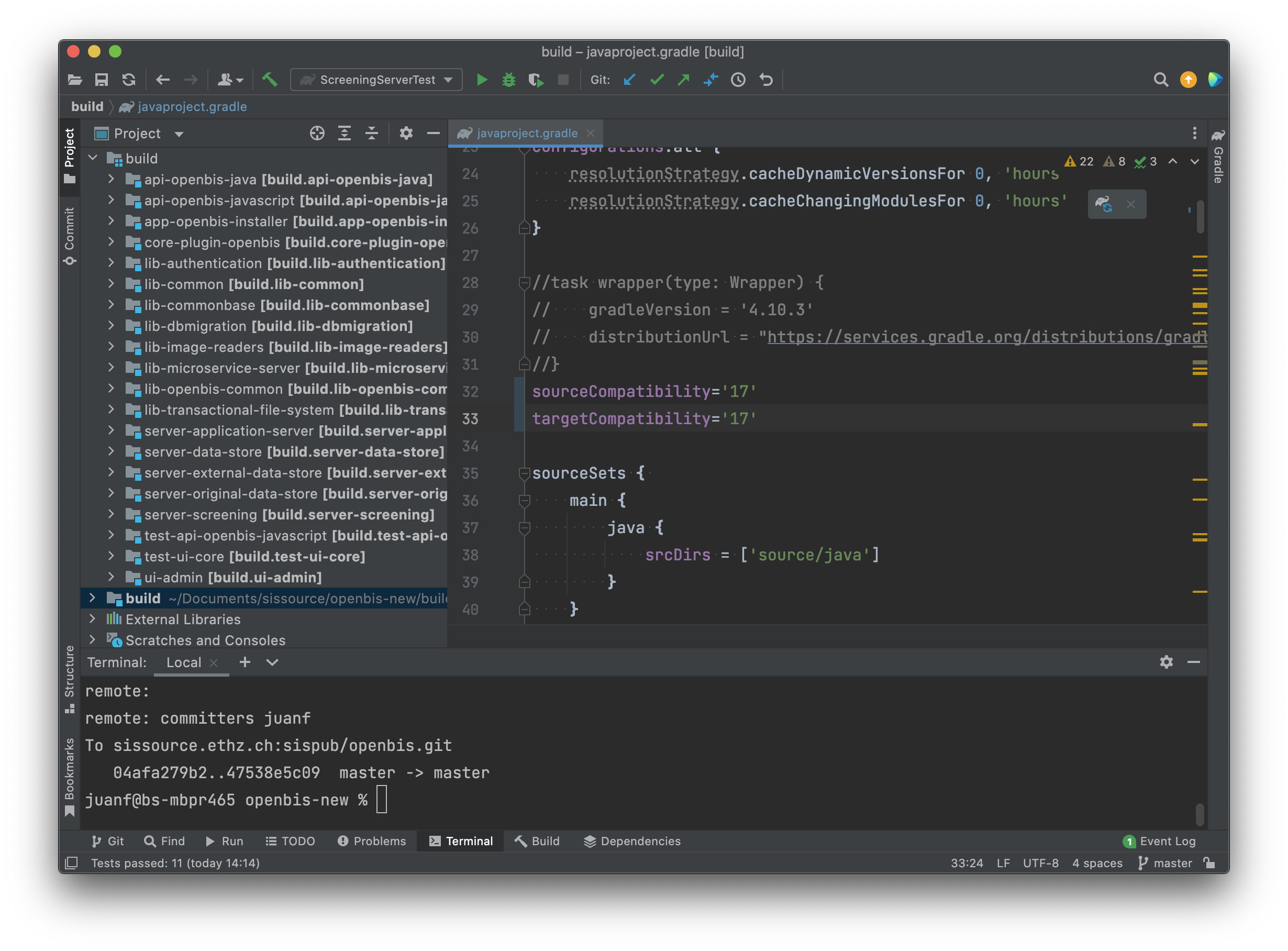
IntelliJ can’t find a particular method
Code compatiblity 1.8 is set by default to work well with our javadoc tools but it can be set to 17 on IntelliJ. See image below.
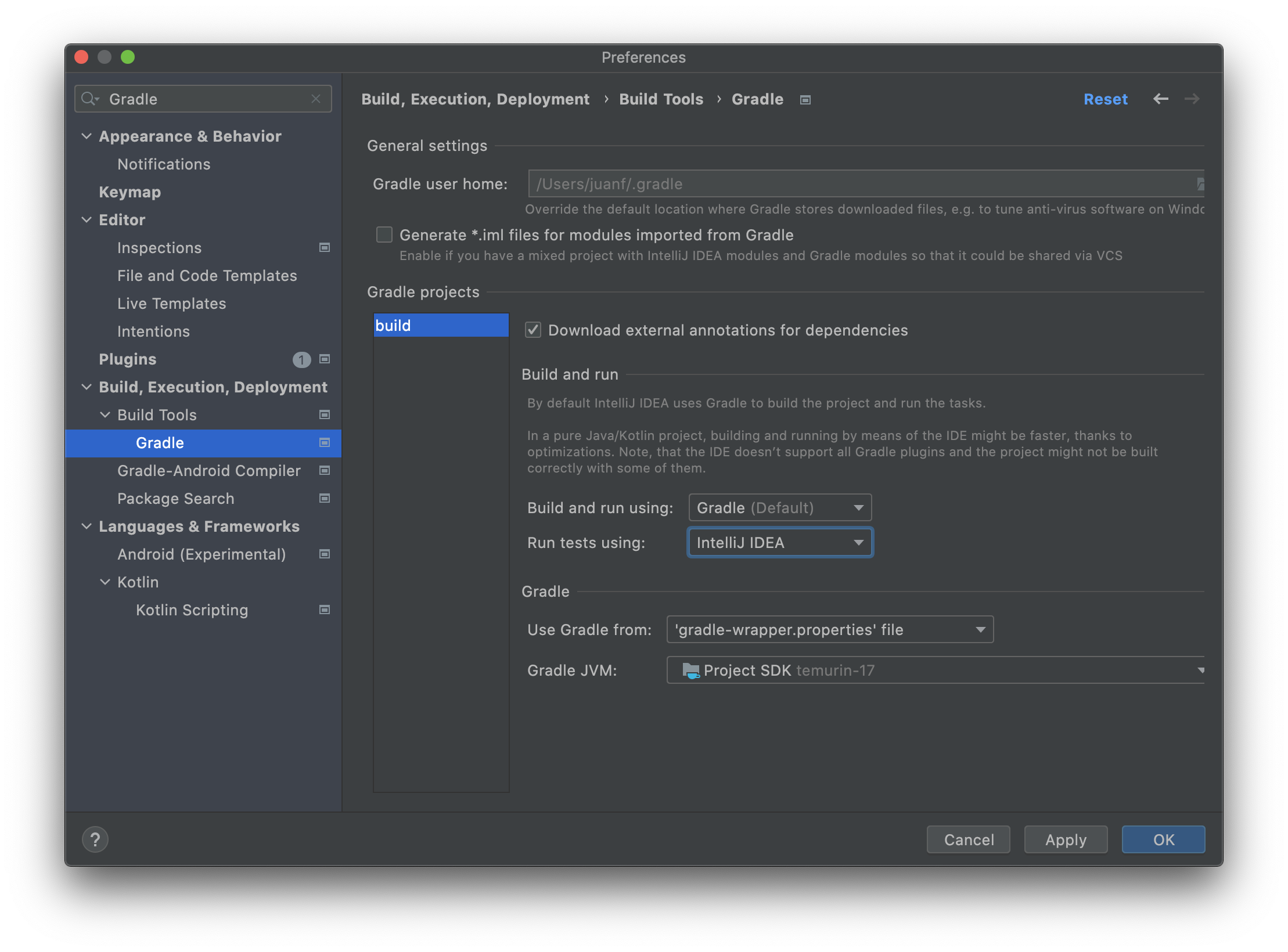
Test seem to run through Gradle and fail
They need to be set to run using IntelliJ.
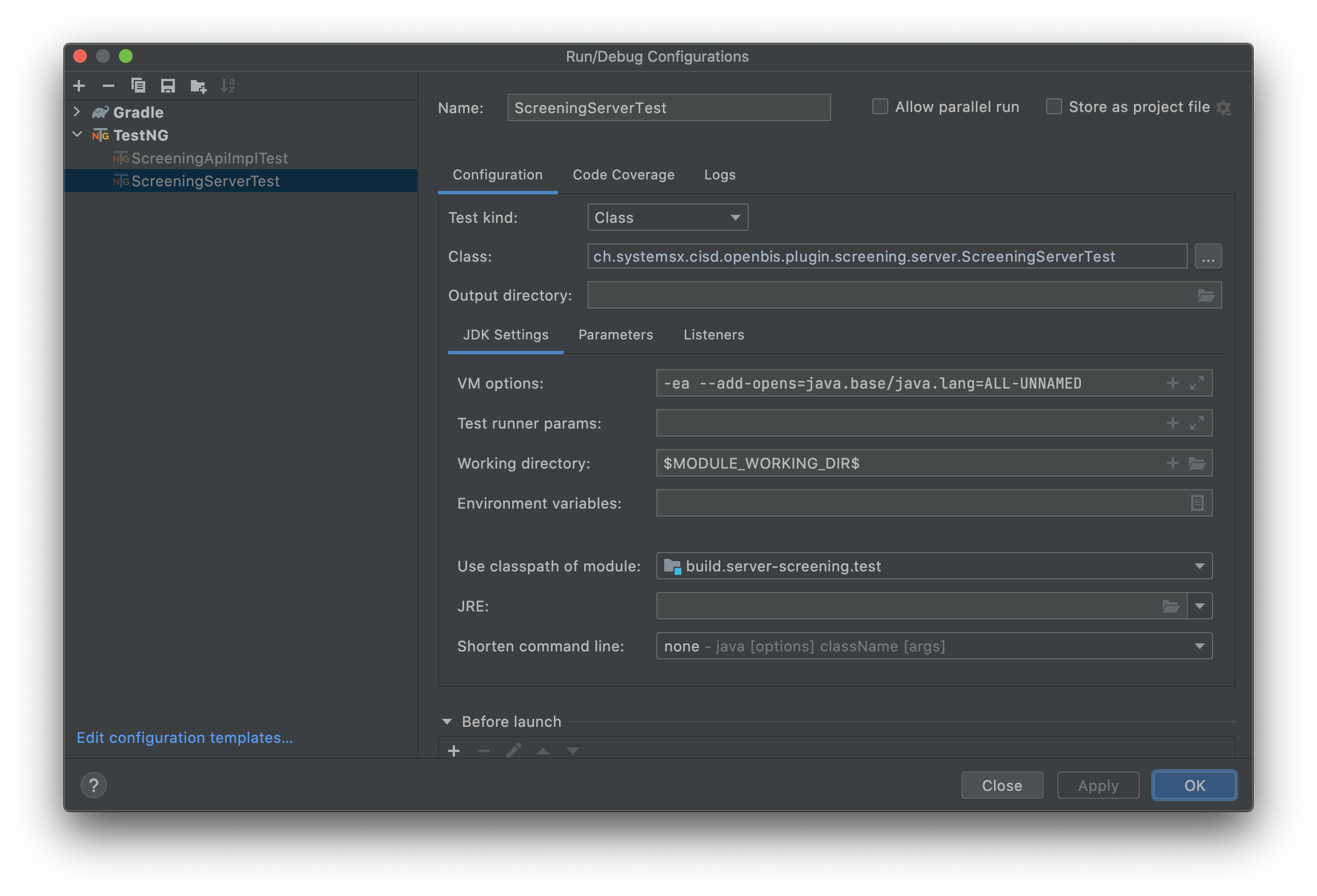
Test seem to run through intelliJ but throw a package not open error
The project does not uses modules yet. Add ‘–add-opens’ statements manually when launching the tests as shown below.
Development of Admin UI
Generate openBIS JS bundle by running in command line
cd /<OPENBIS_PROJECT_ROOT>/api-openbis-javascript
./gradlew :bundleOpenbisStaticResources
Start openBIS in your chosen IDE (Admin UI assumes it will run at: http://localhost:8888/openbis-test/):
run openBISDevelopementEnvironmentASPrepare gradle task
run openBISDevelopementEnvironmentASStart gradle task
In command line do:
cd /<OPENBIS_PROJECT_ROOT>/ui-admin
npm install
npm run dev
Open in your chosen browser a url, by default: http://localhost:9999/admin
Setting up IntelliJ Idea
Under “IntelliJ IDEA” -> “Preferences” -> “Languages and Frameworks” -> Javascript, set the language version to ECMAScript 6.